
Add-ons are extras you can add to your MISAC plan without changing plans. There are three kinds: feature add-ons (for example HR and Payroll, Rental Management or Online Payments), extra storage, and the Online Store, which comes in six plans of its own. This guide shows how to buy each kind, what you are charged, and how to cancel an add-on you no longer need.
Before you start
- Buying and cancelling add-ons is normally done by the workspace owner or an administrator. See Workspace owners and the billing owner.
- Open your plan page: My Account (the person icon at the top right) > Plan & Billing > My Plan. See Your plan page.
- Prices are per month and exclude 13% VAT. The price window always shows the amount with VAT before you pay.
Step by step
Add a feature add-on
-
On My Plan, scroll to Feature add-ons. Each row shows what the add-on does, its monthly price and any one-time setup fee.
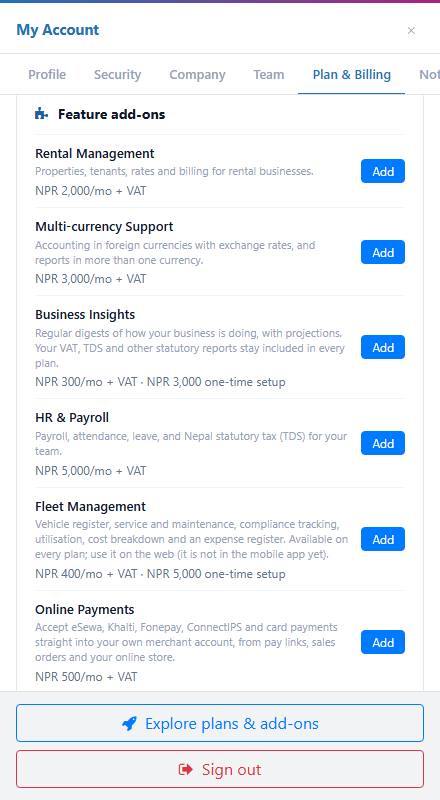
The Feature add-ons list on the plan page -
Click Add on the add-on you want, for example HR & Payroll. MISAC works out the price and asks you to confirm, for example: "Add HR & Payroll? Pay now NPR 5,650 incl. NPR 650 VAT (NPR 5,000 for the rest of this cycle), then NPR 5,000/mo on each cycle."
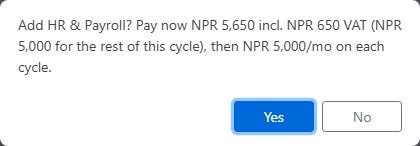
The price confirmation for a feature add-on -
Click Yes to go on to payment, or No to stop. Pay in the payment window. See Paying.
Once the payment is confirmed, the add-on shows Active and its screens appear in your menu straight away. An add-on that costs nothing starts as soon as you confirm, with no payment step.
Buy extra storage
-
Scroll to Extra storage and click Buy.
-
MISAC asks: "How many blocks of Extra Storage (10 GB) (+10 GB each)?" The box starts at 1. Change it if you want more blocks, and click OK.
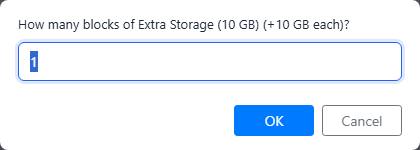
The question asking how many 10 GB blocks -
Check the price, for example "Add Extra Storage (10 GB)? Pay now NPR 452 incl. NPR 52 VAT (NPR 400 for the rest of this cycle), then NPR 400/mo on each cycle." Click Yes to pay, or No to stop.
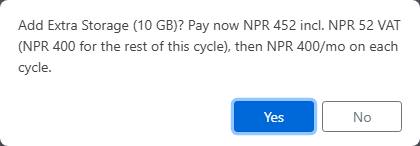
The price confirmation for extra storage Once paid, the storage row shows how many blocks you have, the extra space and the monthly total, and the button changes to Add another.
Choose an Online Store plan
-
Scroll to Online Store in Feature add-ons. Its price line shows "From NPR 0/mo" and "6 plans". Click Choose a plan.
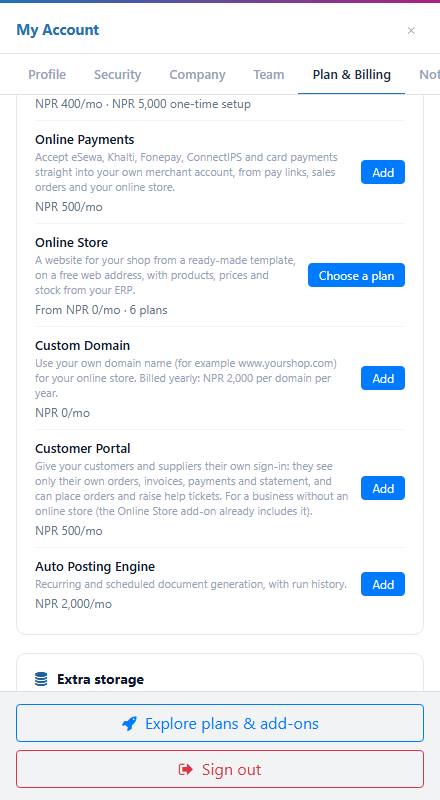
The Online Store row with the Choose a plan button -
The window lists the six Online Store plans and what each one allows. Click the plan you want.
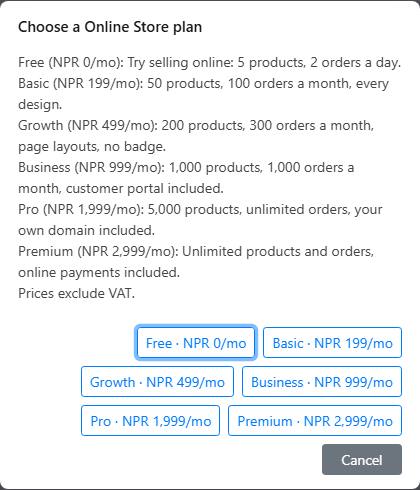
The window listing the six Online Store plans Plan Price per month Products shown Orders Free 0 5 2 a day Basic 199 50 100 a month, every design Growth 499 200 300 a month, page layouts, no badge Business 999 1,000 1,000 a month, customer portal included Pro 1,999 5,000 Unlimited, your own domain included Premium 2,999 Unlimited Unlimited, online payments included -
For a paid plan, MISAC shows the price with VAT, for example: "Add Online Store (Basic plan)? Pay now NPR 225 incl. NPR 26 VAT (NPR 199 for the rest of this cycle), then NPR 199/mo on each cycle." Click Yes to pay, or No to stop.
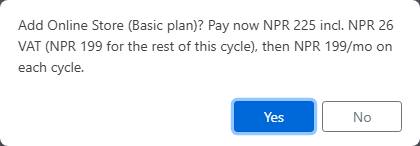
The price confirmation for the Online Store Basic plan The Free plan starts as soon as you confirm, with nothing to pay. Once you have a plan, the row shows your plan and price, Change plan and Cancel, and how much of the plan you are using, for example "Online orders this month: 48 of 60". For everything about setting up and running the shop, see Set up your Online Store.
Cancel an add-on
-
Find the add-on on My Plan. An add-on you have shows Active and a Cancel button (a storage add-on shows Cancel next to Add another).
-
Click Cancel. MISAC asks you to confirm, for example "Cancel HR & Payroll? Its features stop being available and the charge ends from your next billing cycle."
-
Click Yes to cancel, or No to keep it.
What happens next
- When you add something in the middle of a cycle, you pay a first charge now for the rest of the current billing cycle (plus any setup fee and VAT). After that, the monthly price is added to your regular bill.
- A cancellation takes effect from your next billing cycle, and you keep the add-on until then. Nothing already paid is refunded.
- On the Online Store, moving up to a bigger plan applies at once, and you pay only for the rest of the cycle. Moving down applies from your next cycle and nothing is charged now. Until then, the row says "Moves to the ... plan from the next cycle".
- An add-on that a bigger Online Store plan includes (for example Customer Portal with Business) shows "Included with your plan" and has no Cancel button.
- Each purchase produces an invoice. See Invoices and receipts.
Common questions
I cleared the storage question and clicked OK, and it said "Enter a quantity of 1 or more."
The box needs a number of 10 GB blocks of 1 or more. Type one, for example 1, and click OK again.
It says "Could not price this add-on. Try again."
MISAC could not work out the price at that moment. Close the window, wait a moment and try again. If it keeps happening, contact MISAC support.
The add-on shows Active but I cannot see its screens.
Reload the page. If they still do not appear, check that the module is turned on under Plan & Billing > Modules, and that your role has access to its screens (ask your administrator).
Why can I not add Online Payments to my shop?
Online Payments cannot be added on the Online Store Free plan. Move the shop to Basic or higher first. The Premium plan already includes it. See Set up your Online Store.
Custom Domain shows NPR 0/mo. Is it free?
No. A custom domain is billed yearly: NPR 2,000 per domain per year, as its description says. The Pro and Premium Online Store plans include one.
What happens to my data if I cancel an add-on?
Nothing is deleted. The add-on's screens stop being available from your next cycle, and they come back with your data if you add it again.