
This guide shows how to sign in to MISAC with your email address, how to pick a workspace when your email opens more than one business, and what to do when you have forgotten your password.
Before you start
- Your MISAC web address, and the email address and password of your MISAC login.
- If you have never signed in before, first finish Sign up for MISAC, or open the invitation link someone sent you.
- If you turned on two-factor sign-in (a code from an authenticator app), keep your phone nearby. See Security.
Step by step
Sign in with your email
-
Open your MISAC web address. The sign-in card appears.

The MISAC sign-in page -
In Username or email, type your email address. (Staff who were given a username instead of an email can type the username here. A username always opens the one workspace it belongs to.)
-
In Password, type your password.
-
Click Sign In.
- If your email opens only one workspace, MISAC opens it straight away.
- If you use two-factor sign-in, MISAC now asks for the code from your authenticator app.
- If your email opens more than one workspace, you see Choose a workspace (next step).
Choose a workspace
-
On Choose a workspace, click the business you want to work in. Each card shows the business name and your role there, for example Owner, Staff or Customer.
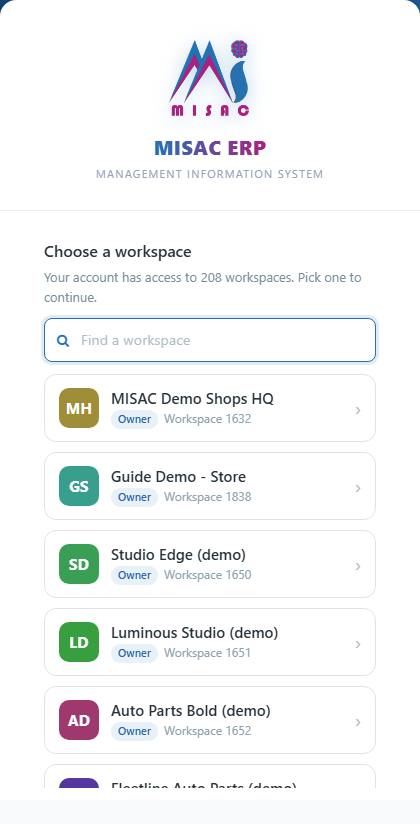
The Choose a workspace list after signing in The card briefly says "Opening ..." and the workspace loads. With many workspaces the list scrolls inside the card, and a Find a workspace box above it narrows the list as you type part of the name. To move to another workspace later without signing out, see Workspaces.
Reset a forgotten password
-
On the sign-in card, click Forgot password?. The Reset your password page opens.
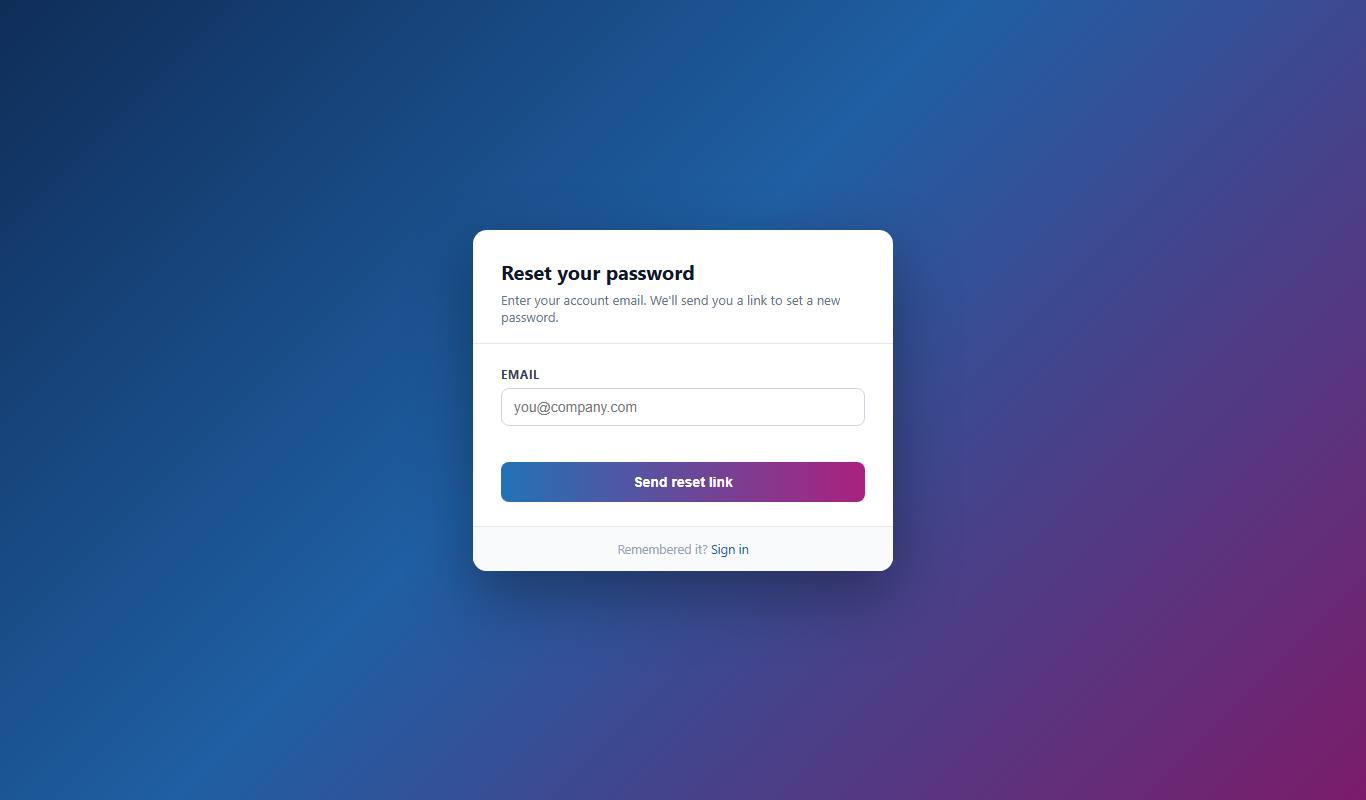
The Reset your password page -
In Email, type the email address of your MISAC login.
-
Complete the human-verification box under the email field, then click Send reset link.
The page answers "If that email is registered, a reset link has been sent." It gives the same answer for every address, so nobody can use it to find out who has an account. The button then counts down before you can send another link.
-
Open the email from MISAC and click the reset link. A page titled Set a new password opens.
-
Type your new password in New password (at least 8 characters) and again in Confirm password, then click Save password. The page says "Password updated. Redirecting to sign in..." and takes you back to the sign-in card.
-
Sign in with your email and the new password.
What happens next
- MISAC keeps you signed in on this browser for up to 14 days, even after you close it. There is no "remember me" box because this is already the default. On a shared computer, always sign out. Open your account menu (the person icon at the top right) and click Sign out at the bottom.
- Resetting your password signs you out on every device, so anyone else using your old password is signed out too.
- A reset link works once, and only for about an hour. If it has expired, ask for a new one.
Common questions
It says "Invalid email or password".
The email address or the password is wrong. Check the email address, check that Caps Lock is off, and type the password again. If it still fails, reset your password with Forgot password?. "Network error. Please try again." now means only that MISAC could not be reached: check your connection and try again.

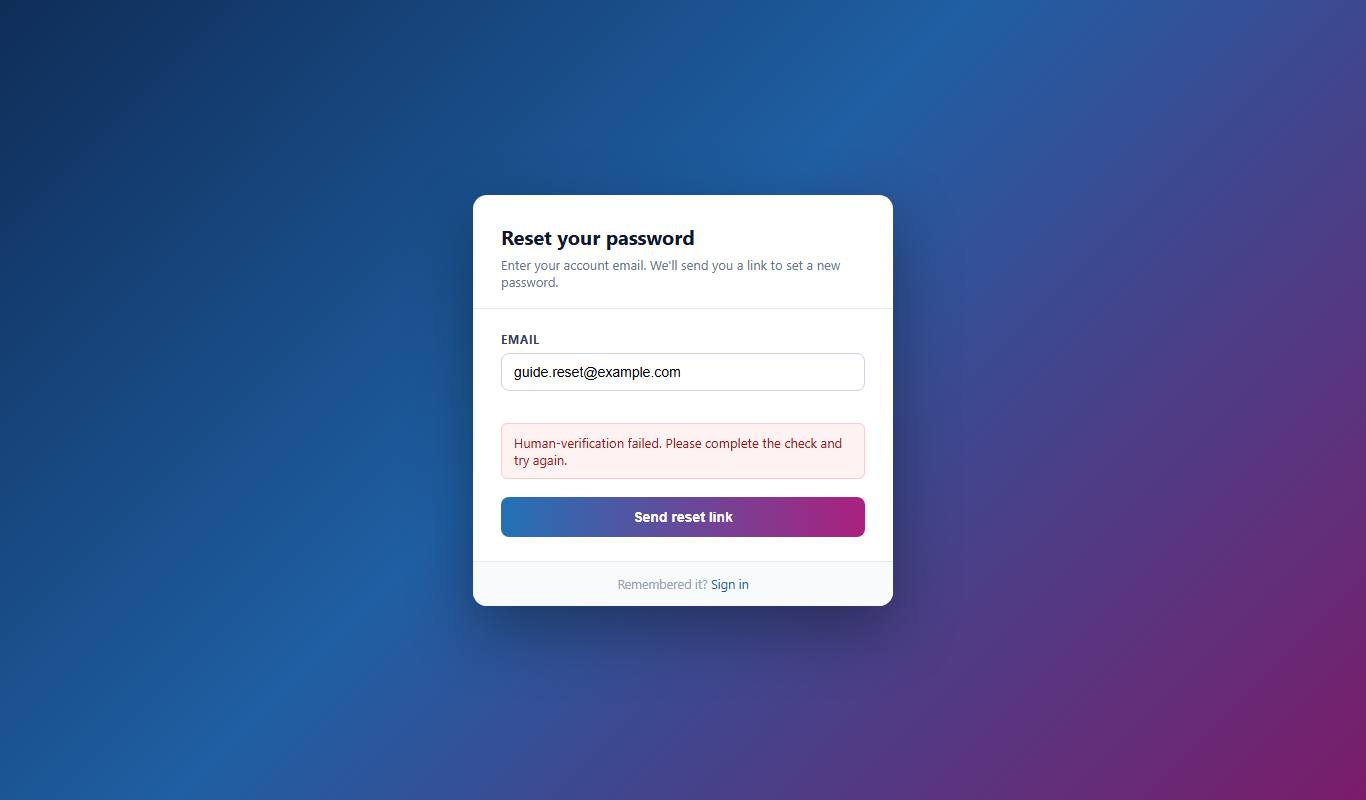
The reset page says "Human-verification failed. Please complete the check and try again."
The Cloudflare check under the email field did not finish. Wait for it to tick (or click it when asked), then press Send reset link again. If the box never appears, reload the page or try another browser.
I have many workspaces and cannot find the one I want in the list.
Type part of its name in Find a workspace above the list, or scroll the list. You can also open any workspace and then switch from the workspace name at the top right. See Workspaces.
It says "Confirm your email first".
Your account was created but the confirmation link in your email was never opened. Open it, choose your password, then sign in. See Sign up for MISAC.
It says "Your account has no workspace yet".
Your login works but no business is linked to it. Create your business on that screen (see Sign up for MISAC, Part 3), or ask the business that invited you to send the invitation again.
No reset email arrived.
Check your spam folder, and check that you typed the address of your MISAC login. If you pressed the button again too soon, the page tells you a link was just sent. Wait for the countdown to finish before you ask again.