
This guide takes you from "I have never used MISAC" to your own business open in MISAC. You create one MISAC account with your email address and confirm that address from your inbox. Then you choose a password and create your business (MISAC calls it a workspace) on the plan you want. There is a free plan, so you can start without paying anything.
Before you start
- An email address you can open right now. The confirmation link is sent there and it works for 24 hours.
- Your company name. You can fill in the other company details (PAN, VAT number, address) later.
- A few minutes. No card or payment is needed to start on the free plan.
- If you were invited by someone who already uses MISAC, do not sign up here: open the invitation link from your email instead. It adds you to their workspace.
Step by step
Part 1: Create your account
-
Open your MISAC web address. The sign-in card appears. Under the Sign In button, click Create my account.
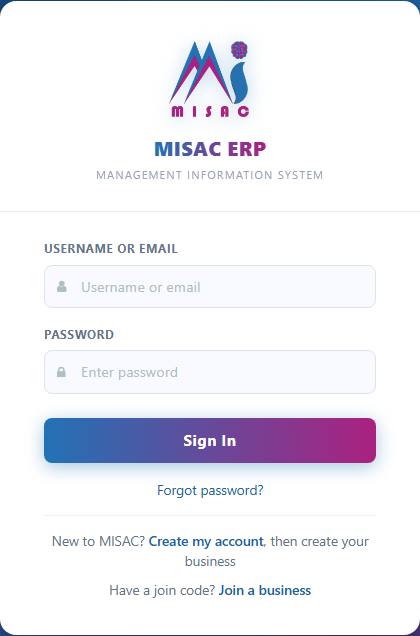
The sign-in card with the Create my account link The Create my account form opens in the same card. (If you open the sign-up page directly, it brings you to this same form.)
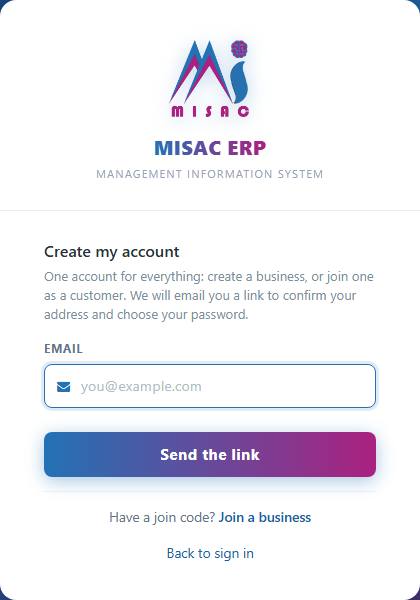
The Create my account form -
In Email, type your email address.
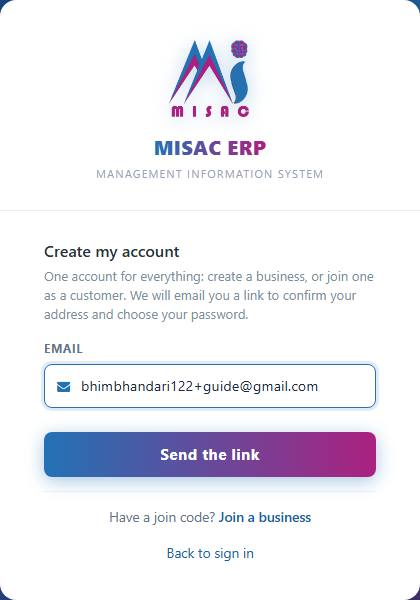
The Create my account form with an email address typed -
Complete the small human-verification box under the email field (a Cloudflare check). It usually ticks itself after a second or two. Sometimes it asks you to click a box.
-
Click Send the link.
The form now says: "If this address can be used, a verification link is on its way. Open it to choose your password and finish creating your account." MISAC says the same thing for every address, so nobody can use this form to find out who has an account.
Part 2: Confirm your email and choose a password
-
Open your inbox and find the email Confirm your MISAC account. If it is not there after a few minutes, look in your spam or promotions folder.
-
Click Confirm email in that email. A page titled Confirm your account opens in your browser. Your account is not confirmed yet. Opening the link does nothing on its own.
-
Type your new password in Password (at least 8 characters) and again in Confirm password, then click Confirm account.
The page shows All set: "Your account is confirmed. Sign in with your email and this password."
Part 3: Create your business
-
Go back to your MISAC web address. Type your email address and the password you just chose, and click Sign In.
-
Because your new account has no business yet, the card shows Your account has no workspace yet. Fill in:
- Company name (required): the name of your business, for example "Guide Signup Demo".
- Phone (optional): a contact number.
- Industry (optional): pick the closest match, or leave Skip. For some industries MISAC picks a better plan for you: cheque printing and cheque management need the Solo plan or higher, and a school or college needs the Medium plan or higher (they need several users signed in at once).
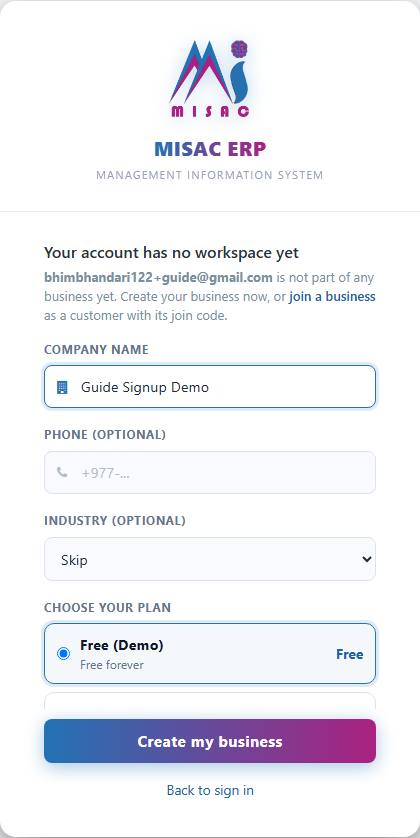
The Your account has no workspace yet form, with the company name typed -
Scroll down to Choose your plan and click the plan you want. Free (Demo) is free forever. The paid plans (Solo, Medium, Large, Max) start with a 30-day trial, and you pay only if you want to keep using them after the trial. Prices are per month and exclude 13% VAT.
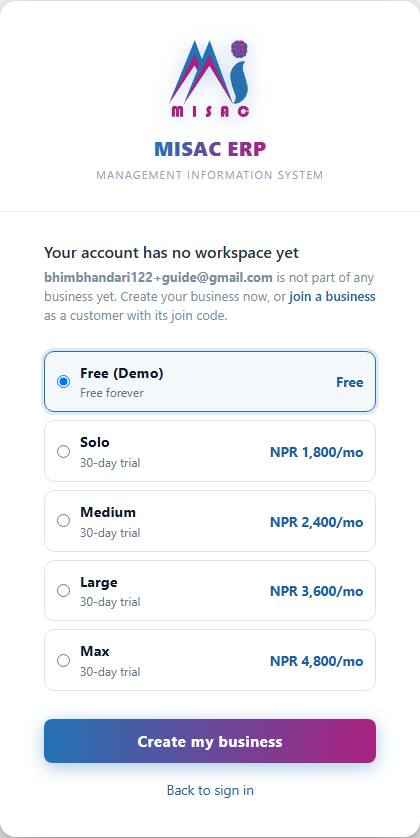
The plan choices: Free (Demo), Solo, Medium, Large and Max -
Click Create my business. MISAC sets up your books (a starter chart of accounts, your owner login and your seat) and opens your new workspace.
If your sign-up page shows one longer form
Some MISAC web addresses still show the earlier, one-page sign-up form, titled Create your MISAC account. It asks for the same things in one go.
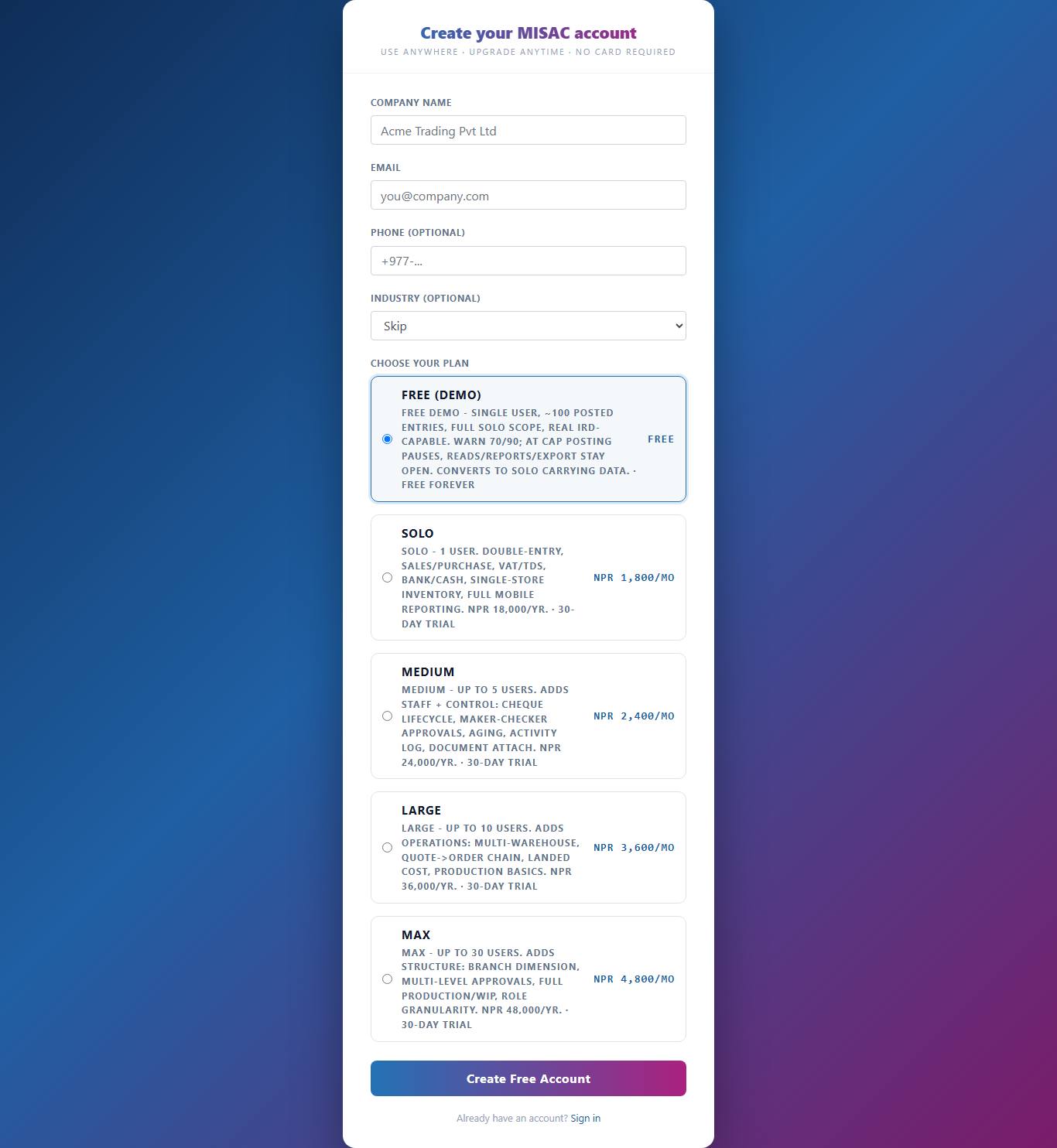
- Type your Company Name and Email. Phone and Industry are optional.
- Pick a plan under Choose your plan. The button at the bottom changes to match: Create Free Account for the free plan, or Start 30-day Trial for a paid plan.
- Complete the human-verification box and click the button.
- The page says Account created! Check your email to verify. Open the email, click the link, set your password when asked, and sign in.
If the email does not arrive, the same message offers resend the verification email.
What happens next
- Your new workspace opens with a short Set up your company window (company name, tax details and fiscal year). Fill it in now, or click Skip for now and do it later from your account menu under Company.
- You are the owner of the workspace and its billing owner: invoices and payment notices go to your email address. See Workspace owners and the billing owner.
- To see or change your plan, open Your plan page.
- To sign in next time, see Signing in.
Common questions
I clicked Send the link but no email came.
Wait a few minutes and check your spam folder. The form shows the same message whether or not an email was sent, so also check the address you typed. If your address already has a MISAC password, no new link is sent. Sign in instead, or use Forgot password? on the sign-in card.
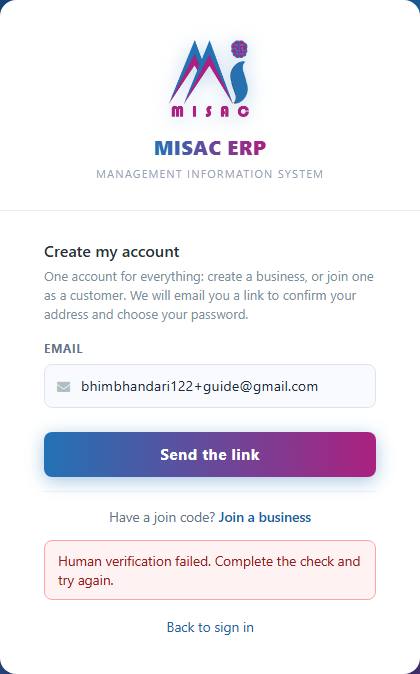
The form says "Human verification failed. Complete the check and try again."
The human-verification box did not finish, or it expired while the page sat open. Reload the page, let the box tick, and click Send the link again. Any other problem is named in the message itself; "Could not create the account." appears only when MISAC gave no reason.
The confirmation link says "We could not use this link".
The link has expired (it lasts 24 hours) or was already used. Go back to Create my account and send a new link to the same address.
After signing in I see "Confirm your email first".
You have not opened the confirmation link yet, or you opened it but did not choose a password. Open the email and finish Part 2.
The page says my business "awaits approval by the MISAC team".
Some MISAC services check new businesses by hand. You can sign in as soon as your business is approved, and you do not need to sign up again.
I picked the wrong plan.
You can change your plan at any time from your plan page. See Your plan page.