
Every workspace has at least one owner. Owners are the people who can hand the workspace over to someone else and who decide about its plan and its bill. One of the owners is the billing owner: MISAC sends that person every invoice, payment notice and receipt. This guide shows where to see the owners, what each role means, and how an owner adds another owner or moves the billing to them.
Before you start
- Sign in to the workspace. Anyone in the workspace can see who its owners are, but only an owner can change the list.
- A new owner must already be a member of the workspace (have a login in it). If they are not, invite them first. See Team.
Step by step
See the owners
-
Click the person icon at the top right of the screen to open My Account, then click the Team tab.
-
Scroll down to Owners ("People who can transfer this workspace and manage billing"). Each owner is listed by email address. The billing owner is marked Owner - receives the invoices, and any other owner is marked Owner.
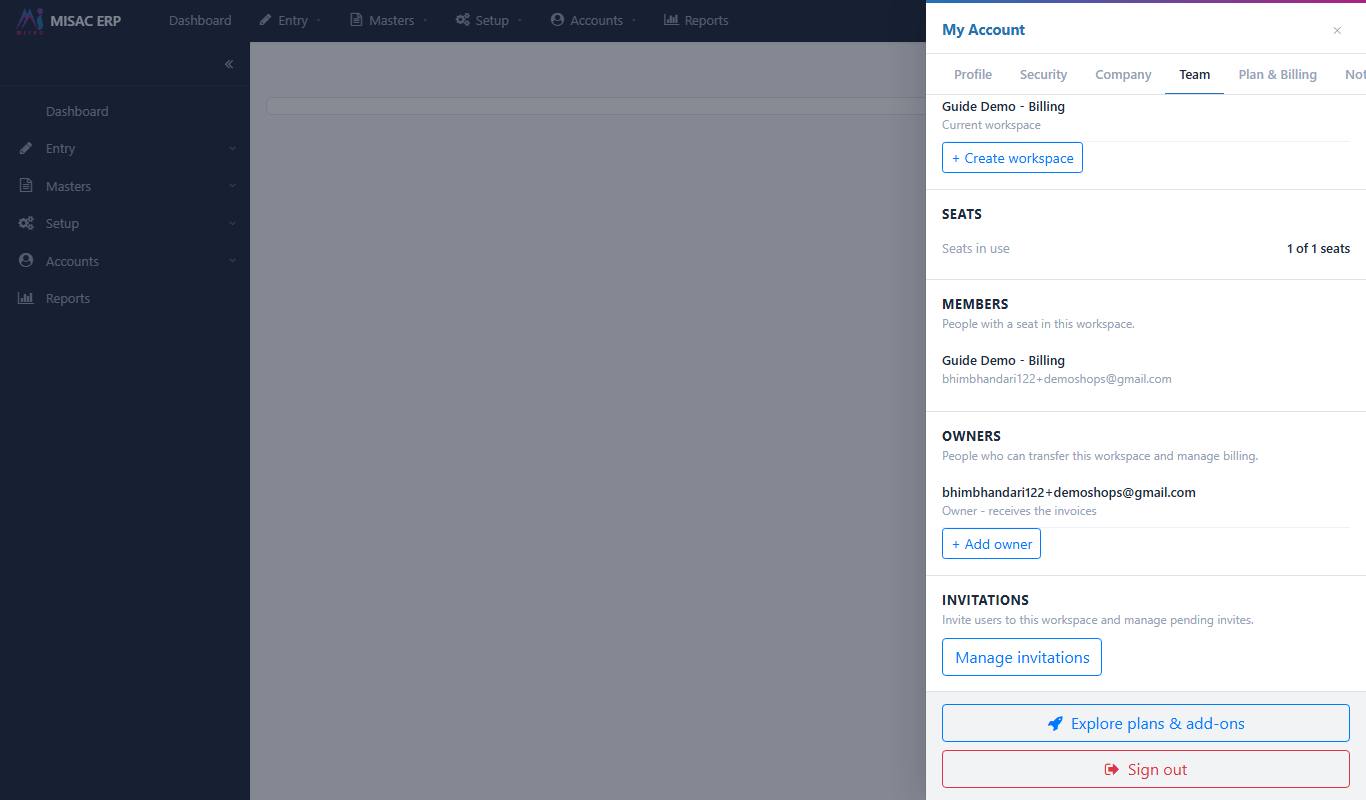
The Owners section of the Team tab, with the billing owner Above it, Members lists the people who have a seat in the workspace. Being a member, even with full access to the data, is not the same as being an owner.
Add an owner (owners only)
-
Under Owners, click + Add owner. The Add owner window opens.
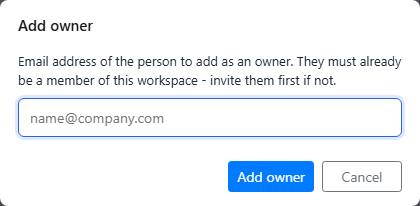
The Add owner window -
Type the email address of the person to add. They must already be a member of this workspace. Click Add owner (or Cancel to close the window without changing anything).
The person now appears under Owners as Owner. Their login and seat do not change.
Make someone else the billing owner (owners only)
-
Next to another owner, click Make billing owner.
-
MISAC asks: "Make ... the billing owner? All invoices and payment notices for this workspace will go to them from now on." Click Change to confirm.
The label Owner - receives the invoices moves to that person.
Remove an owner (owners only)
-
Next to an owner who is not the billing owner, click Remove.
-
MISAC explains that the person keeps their login and their seat, and only loses the right to transfer the workspace and manage billing. Click Remove to confirm.
What happens next
- All the money mail goes to the billing owner. Invoices, overage notices and payment receipts go to the billing owner's email from the moment you change it.
- You cannot remove the billing owner directly. Make another owner the billing owner first, and the Remove button then appears next to the previous one. This way a workspace always has someone who receives its invoices.
- Owners are not the same as seats. Removing an owner keeps their seat. You free a seat under Members or on the plan page, and that does not change who owns the workspace.
- The person who creates a workspace becomes its first owner and billing owner. See Workspaces.
Common questions
I do not see + Add owner, Make billing owner or Remove.
You are not an owner of this workspace. The section then says "Only an owner can change this list." Ask one of the listed owners.
Adding an owner fails.
The person must already be a member of this workspace. Invite them first from Manage invitations on the same tab, wait until they accept, then add them as an owner.
There is no Remove button next to the billing owner.
That is deliberate. Make another owner the billing owner first.
The Owners section says "No owner is recorded for this workspace."
Contact MISAC support. They can record the right owner.
The invoices go to an old email address.
Invoices follow the billing owner. Make the right person the billing owner (they must be an owner, and therefore a member, first).