
A workspace is one business in MISAC: its own books, its own plan and bill, and its own team. One email login can own or belong to many workspaces. Create another workspace when you need a completely separate set of books, for example a second company, or each client if you are an accountant. Nothing is shared between workspaces. This guide shows how to create one and how to move between them.
Before you start
- Sign in to any workspace you already have. See Signing in.
- Have the new company's name ready.
- Each login can own a limited number of workspaces. When you reach the limit, MISAC tells you and you can ask MISAC to raise it.
Step by step
Create another workspace
-
Click the person icon at the top right of the screen to open My Account, then click the Team tab. The Workspace section at the top lists every workspace your login can open.
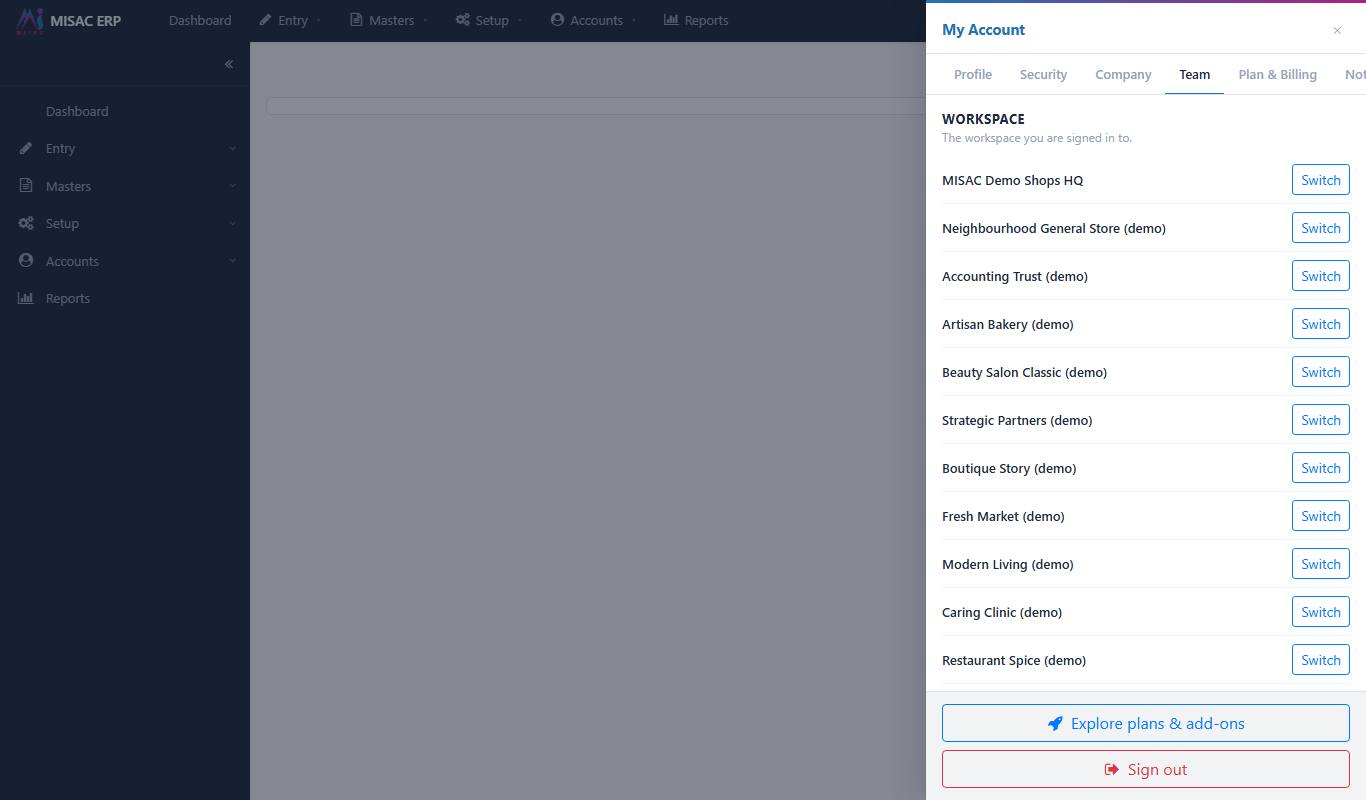
The Team tab of My Account with the Workspace list -
Scroll to the end of the workspace list and click + Create workspace. The Create workspace window opens.

The Create workspace window -
Type the new company name, for example "Guide Demo - Billing".
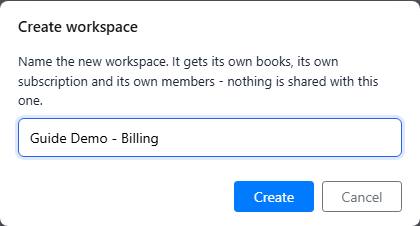
The Create workspace window with the name typed -
Click Create. MISAC shows "Creating workspace..." and then "Workspace created", with how many workspaces your login now owns out of how many it may own. There is no email to confirm: your login is already confirmed.
The new workspace appears in the list. MISAC does not move you into it on its own, so you stay in the workspace you were in.

The new workspace in the Workspace list, with the Create workspace button below it
Switch from the Team tab
-
In the Workspace list, click Switch next to the workspace you want. MISAC asks you to confirm.

The Switch workspace confirmation -
Click Switch. The page reloads inside the other workspace. Its name now shows at the top right of the screen.
The first time you open a new workspace, MISAC asks you to Set up your company: company name, tax details and fiscal year. Fill it in now, or click Skip for now.

The Set up your company window in a new workspace
Switch from the top of the screen
-
Click the workspace name at the top right of the screen (the button with the briefcase icon). A list of your workspaces opens, and the one you are in has a tick.

The workspace list opened from the workspace name at the top right -
Click the workspace you want and confirm with Switch. The page reloads in that workspace.
This button only appears when your login has more than one workspace.
Choose the workspace when you sign in
-
When you sign in with your email, MISAC shows Choose a workspace if your login opens more than one. Click the one you want to open. New workspaces appear at the end of the list.
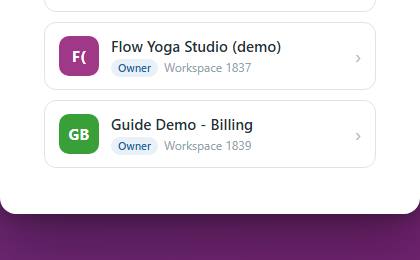
A new workspace at the end of the Choose a workspace list
What happens next
- A new workspace starts on the Free (Demo) plan, with you as its owner and billing owner. It has its own plan page, so upgrading one workspace does not change any other. See Your plan page.
- Its team is empty apart from you. Invite people into it from the same Team tab. See Team.
- When you come back on the same browser while you are still signed in, MISAC opens the workspace you used last.
Common questions
It says "This account already owns ... of ... allowed workspaces."
Your login has reached its workspace limit. Contact MISAC to raise it, or reuse a workspace you no longer need.
I created a workspace but I am still in the old one.
MISAC keeps you where you are on purpose. Click Switch next to the new workspace on the Team tab.
Can I move data from one workspace to another?
No. Workspaces are fully separate, including their chart of accounts and their bill. Owners can export a workspace's data from the Company tab of My Account and import it into another.
Should I use a workspace or an organization for my second branch?
Use a workspace for a separate legal company or a client whose books must not mix with yours. Branches and departments of the same company belong inside one workspace.
The switch reloaded the page but shows the old company.
Reload the page once more. If it still shows the old company, sign out and sign in again, then pick the workspace from Choose a workspace.