
Whenever you pay MISAC (an upgrade, a renewal, an add-on or an open invoice) the same payment window opens and asks how you want to pay. You can pay online through a payment service such as Khalti. Or you can deposit the money into MISAC's bank account and upload the deposit voucher. This guide walks through both, and explains how VAT appears on what you pay.
Before you start
- Payments are normally made by the workspace owner or an administrator. Invoices and receipts go to the billing owner. See Workspace owners and the billing owner.
- Start from what you are paying for: Upgrade on a plan card, Add or Choose a plan on an add-on (see Your plan page and Buying add-ons), or Pay on an invoice (see Invoices and receipts).
- To pay online, you need your wallet or mobile banking login. To pay by bank deposit, you need a way to deposit or transfer money, and a photo or PDF of the deposit slip.
Step by step
Choose how to pay
-
Start the payment. The payment window opens with the Amount due and one tile for each way you can pay.

The payment window with Khalti, Mobile / e-Banking, Connect IPS, eSewa and Bank deposit The tiles you see depend on what your MISAC offers. Possible tiles:
Tile What it is Khalti Pay from your Khalti wallet Mobile / e-Banking Pay from your bank's app or internet banking (through Khalti) Connect IPS Direct bank transfer eSewa Pay from your eSewa wallet IME Pay Pay from your IME wallet Fonepay Scan a QR code with any bank app Bank deposit Deposit into MISAC's bank account and upload the voucher. Always available -
Click the tile you want. For a plan change, MISAC shows a summary before anything happens: the term price, the VAT and the amount Due now.
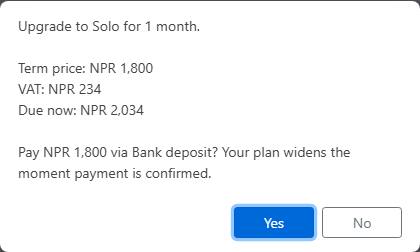
The summary before paying, with term price, VAT and Due now -
Check the Due now line, then click Yes to continue, or No to stop. Nothing is charged until you finish on the payment page.
Pay online
-
After Yes, MISAC sends you to the payment service's own page. Sign in there and approve the payment. With Fonepay, MISAC shows a QR code instead. Scan it with your bank app, and keep the window open while MISAC waits for the payment to complete.
-
When the payment is done, you come back to MISAC on Plan & Billing > Invoices, with a banner that tells you how it went:
- Paid: the invoice is marked paid and your plan or add-on is applied. View invoice opens it.
- Failed: nothing was taken, or the payment service refused it. Try again reopens the payment window.
- Not confirmed yet: the payment service has not confirmed the payment, so nothing is recorded yet. Use Try again only when you are sure the money did not leave your account.
Pay by bank deposit
-
Choose Bank deposit and confirm the summary. MISAC shows Pay by bank deposit: the amount to deposit and MISAC's bank account.
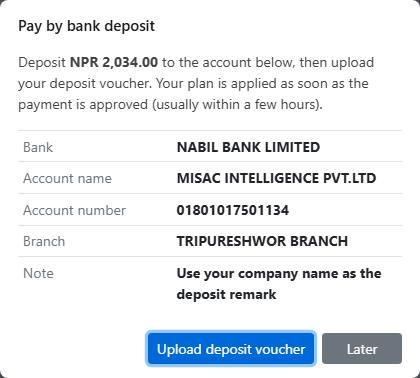
Pay by bank deposit with the amount and MISAC's bank account details -
Deposit or transfer exactly that amount into the account shown. As the note asks, use your company name as the deposit remark.
-
Click Upload deposit voucher. (Or click Later and upload it from your invoice when you have the slip.)
-
Fill in the Upload deposit voucher window:
- Click Choose File and pick the photo or scan of your deposit slip (JPG, PNG or PDF, up to 5 MB). This is required.
- Fill in Bank deposited to, the deposit date, and Deposit reference / slip no.
- Add Remarks (optional) if you want to.
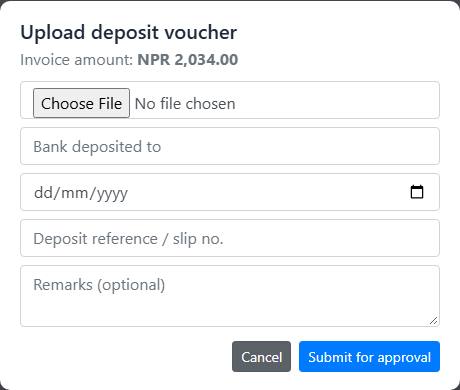
The Upload deposit voucher window -
Click Submit for approval. MISAC says "Deposit voucher submitted - awaiting approval."
What happens next
- An online payment is confirmed by the payment service and applied automatically, usually within a minute.
- A bank deposit is checked by the MISAC team, usually within a few hours. While yours is waiting, My Plan shows it as pending with a Withdraw button. Once it is approved, your plan or add-on is applied and the invoice shows as paid. If it is rejected, My Plan shows the reason. Fix it and upload again.
- MISAC prices exclude VAT. 13% VAT is added to every charge, and the amount you pay includes it. For example, NPR 1,800 plus NPR 234 VAT is NPR 2,034. Your invoice lists the subtotal, VAT (13%) and the total. The invoice you pay against is a proforma invoice, and the tax invoice is issued after the payment. See Invoices and receipts.
- If an invoice stays unpaid after its due date, MISAC reminds you, and later the workspace becomes read-only until it is paid. Paying restores normal use at once.
Common questions
The payment window shows one amount and the summary shows a bigger "Due now".
The Amount due at the top of the payment window and the "Pay NPR ... via ..." question leave out VAT, while Due now includes it. The payment service charges the Due now amount.
I paid online but the banner says "not confirmed yet".
The payment service had not confirmed the payment when you came back. Wait a few minutes and open Invoices again. Do not pay a second time unless you are sure the money did not leave your account. If in doubt, contact MISAC support with the payment service's reference.
It says "You have an unfinished plan-change payment from before."
An earlier payment was started but not finished. Click Yes to cancel it and start this one.
The voucher upload says "The deposit voucher file is required." or "File too large (max 5MB)."
Choose the slip file with Choose File. If the photo is too big, take it again at a lower resolution or save it as a PDF.
I uploaded the wrong voucher.
While it is still pending, click Withdraw on My Plan, then upload the right one from the invoice.
The Bank deposit window says bank details are not published yet.
Ask MISAC support for the deposit account. Make the deposit, then upload your voucher from the invoice.