
This guide covers the personal side of your MISAC login, all of it in the My Account panel. It starts with your profile (your name) and changing your password. Then it covers two-factor sign-in (a code from your phone as well as your password) and the list of devices where you are signed in. Last come API keys, which let another program work with your MISAC data.
Before you start
- Sign in to MISAC. Everything here applies to your own login, and nobody else's is affected.
- For two-factor sign-in, have an authenticator app on your phone (for example Google Authenticator, Microsoft Authenticator or Authy).
- Treat API keys like passwords. Create one only when a program you trust needs it.
Step by step
Your profile
-
Click the person icon at the top right of the screen (its tooltip says My Account). The panel opens on the Profile tab.
-
The card at the top shows your initials, your name and your email. Under Account details you can change your First name, Last name and Display name. Email and Username are greyed out. You sign in with them, so they cannot be changed here.
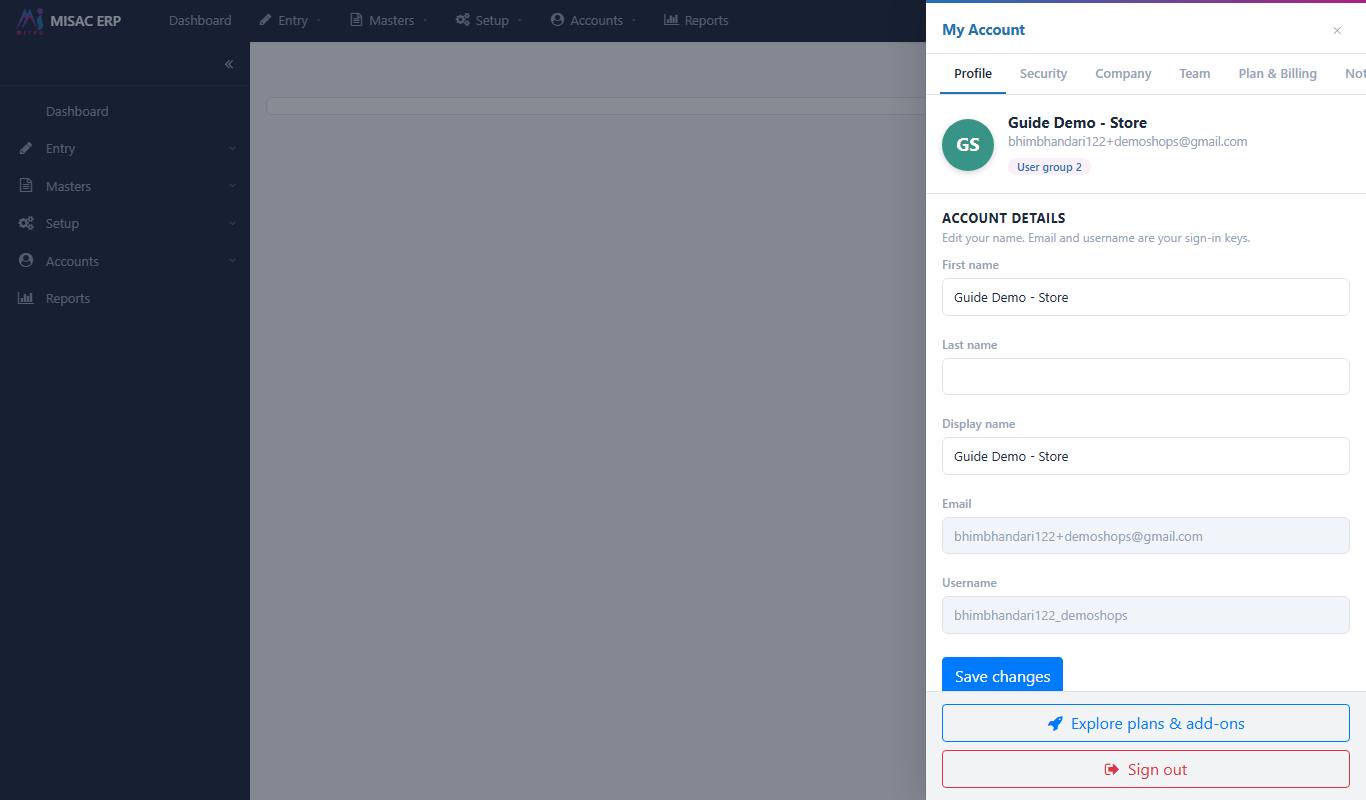
The Profile tab with the name fields and the greyed-out email and username -
Click Save changes after changing your name. The card at the top updates straight away.
Change your password
-
Click the Security tab. The Password section is at the top.

The Security tab with the Password section and the account security buttons -
Type your current password in Current password (if the box is shown), then your new password in New password and again in Confirm new password. The new password must be at least 8 characters, and the two boxes must match.
-
Click Update password. (If your login has no password of its own yet, the current-password box is not shown and the button reads Set password.) Use the new password the next time you sign in.
Two-factor sign-in
-
On the Security tab, click Open account security. The Account Security window opens with four sections: two-factor authentication, active sessions, API keys and webhooks.
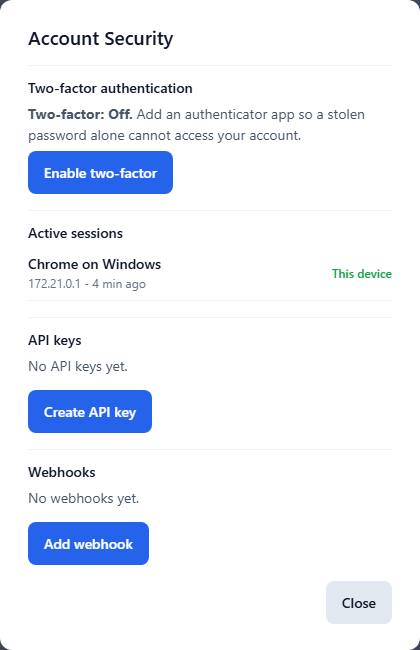
The Account Security window -
Under Two-factor authentication you see "Two-factor: Off" while it is not set up. To turn it on, click Enable two-factor. MISAC shows a secret key (and a setup link for your authenticator app). Add it to your authenticator app, then type the 6-digit code the app shows and click Confirm.
-
MISAC then shows "2FA enabled - save your recovery codes" and a list of one-time recovery codes, once. Click Copy, keep the codes somewhere safe away from your phone, and click Done. If you lose your phone, each recovery code lets you sign in once.
From then on, signing in asks for your password and then the current code from your app. To turn it off later, click Disable two-factor and enter a current code or a recovery code.
Active sessions
-
In the same window, Active sessions lists every device where you are signed in: the browser and system (for example "Chrome on Windows"), the network address and when the session started. The device you are using is marked This device.
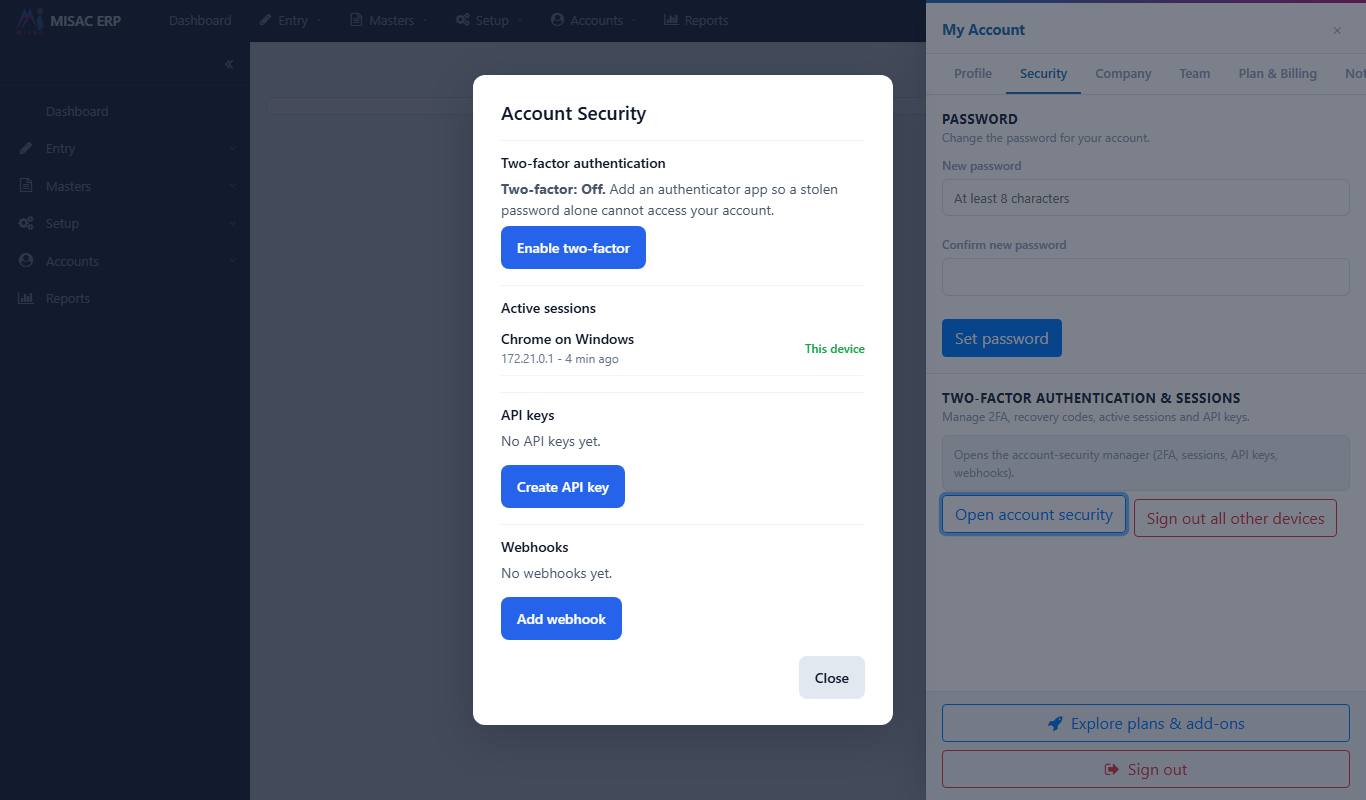
The Active sessions list with the current device marked This device -
If you see a device you do not recognise, click Revoke next to it to sign it out. When more than one session is listed, a Sign out all other devices button signs out everything except the device you are on. The same button is on the Security tab.
If you revoke a session you did not expect, change your password straight away (steps 4 to 6).
API keys
An API key lets another program (for example an automation tool or your own software) read and write your MISAC data as you. Create one key per program, so you can switch one off without breaking the others.
-
In the Account Security window, under API keys, click Create API key.
-
Type a name that says what the key is for, for example "Zapier integration", and click Create.
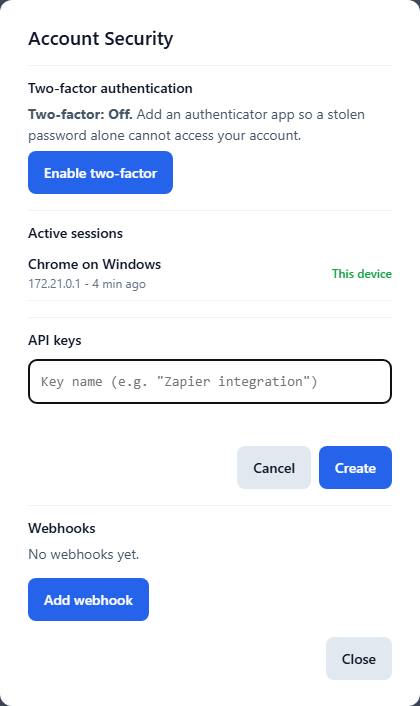
The API key name box with Create and Cancel buttons -
MISAC shows the new key: "New key - copy it now, it is shown only once". Click Copy and paste the key into the program that needs it, then click Done.

A newly created API key shown once, with Copy and Done buttons -
The key now appears in the list by its name and the first few characters of the key, with when it was last used ("never used" until the program uses it).
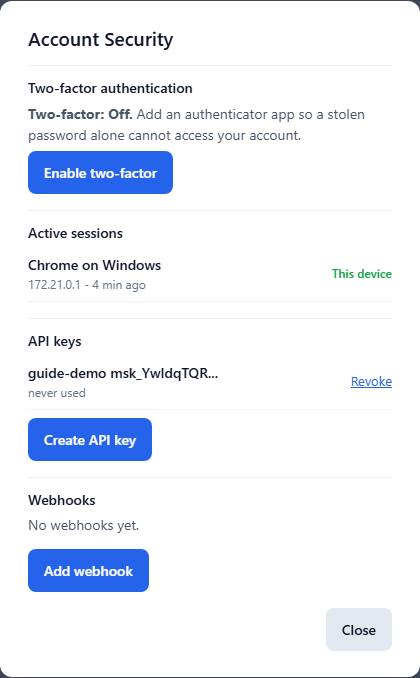
The API key listed with its name, the start of the key and a Revoke button -
To switch a key off, click Revoke next to it. MISAC asks you to confirm, naming the key; click Revoke again. It stops working at once and disappears from the list.

The Revoke API key confirmation naming the key, with Revoke and Cancel buttons -
Click Close to leave the Account Security window.
Webhooks, the last section of the window, send a message to another program's web address when something happens in MISAC. Use them only if a developer or an integration asks you to.
What happens next
- A new name shows on your profile card at once and on documents you create from then on.
- A new password applies from your next sign-in. Your current session stays signed in.
- With two-factor on, every sign-in asks for a code from your app after your password.
- A revoked session is signed out the next time that device talks to MISAC.
- A revoked API key is refused the next time the program uses it. Update the program with a new key.
Common questions
I cannot change my email address or username.
They are what you sign in with, so the Profile tab shows them greyed out. Ask MISAC support if your email address must change.
It says the passwords do not match, or the password is too short.
Type the same new password in both boxes, with at least 8 characters.
I lost my phone and cannot get a two-factor code.
Sign in with one of your recovery codes instead of the code from the app. Then disable two-factor and set it up again on your new phone. If you have no recovery codes left, contact MISAC support.
I closed the window before copying my API key.
The key is shown only once and cannot be displayed again. Revoke that key and create a new one.
There is a session I do not recognise.
Click Revoke next to it (or Sign out all other devices), then change your password and turn on two-factor sign-in.
Does closing the browser sign me out?
Not always. Use Sign out at the bottom of the My Account panel on a shared computer.