
The plan page shows which MISAC plan your workspace is on, how much of the plan you are using, the add-ons you can buy, and the other plans you can move to. This guide explains each part of the page, how to choose or change a plan, and what an upgrade and a downgrade each do. Each workspace has its own plan page and its own plan.
Before you start
- Sign in to the workspace whose plan you want to see. See Signing in.
- Buying, upgrading and paying are normally done by the workspace owner or an administrator. See Workspace owners and the billing owner.
- All prices are in NPR per month and exclude 13% VAT, which is added when you pay.
Step by step
Open the plan page
-
Click the person icon at the top right of the screen to open My Account, then click the Plan & Billing tab. It opens on My Plan.

The Plan and Billing tab open on My Plan
What each part shows
-
Your plan (the dark card at the top) shows your plan name, its state (for example active or trial), the renewal or trial-end date and the monthly price. Depending on your plan it also offers:
- Activate ... Pay now during a paid-plan trial: pay for your plan now to keep working after the trial. Your trial data is kept.
- Renew now or Pay your renewal when a renewal is due.
- Request more time on the free demo (see steps 7 and 8).
When a plan change is waiting for the end of your billing cycle, the card says "A plan change is scheduled at cycle end."
-
Storage and Plan limits show what you use against what your plan allows: storage, and counts such as organizations, products, ledgers and posted vouchers. A bar turns amber as you get close to a limit and red when you reach it. Unlimited means there is no limit. When you are running low, the card offers Upgrade plan.
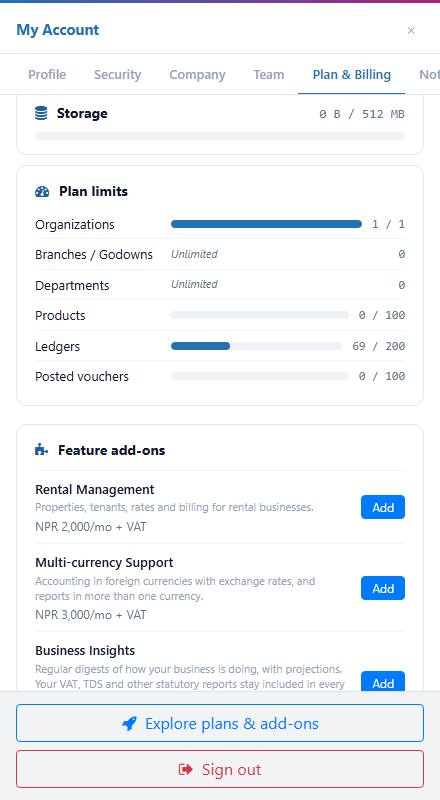
The Storage and Plan limits cards On the free demo, "Posted vouchers 0 / 100" means you can post about 100 entries. When you reach the limit, posting pauses, but you can still open, report on and export everything.
-
Feature add-ons lists the extra modules you can add to your plan, each with its monthly price and any one-time setup fee. An add-on you have shows Active with a Cancel button. See Buying add-ons.
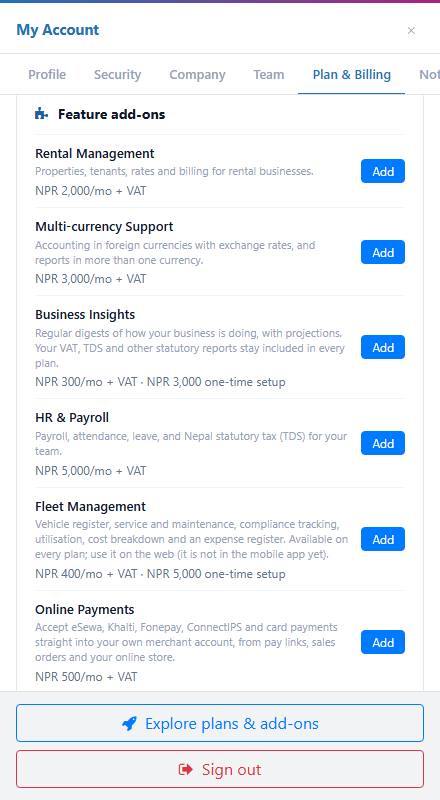
The Feature add-ons list -
Extra storage sells storage in 10 GB blocks. Seats shows how many user seats are in use out of your plan's seats (for example 1 / 1), with each person who holds one. Release seat frees a seat without deleting the person's login.
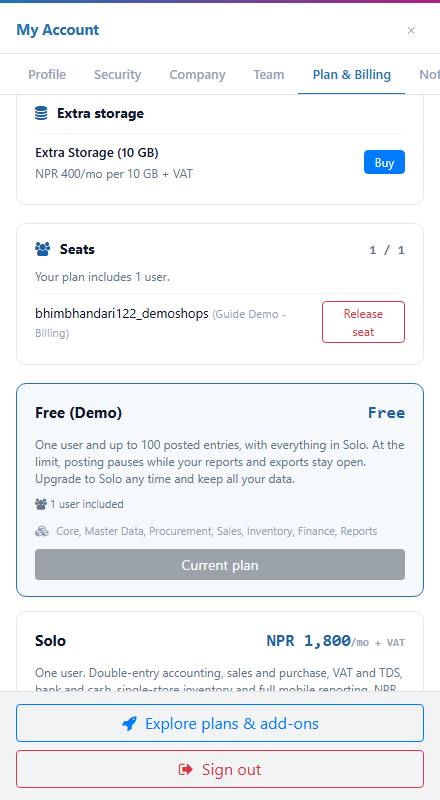
The Extra storage and Seats cards, followed by the plan cards -
At the bottom, one card per plan shows its price, what it includes and which modules come with it. Your plan's button reads Current plan. A plan that costs more shows Upgrade, and one that costs less shows Downgrade.
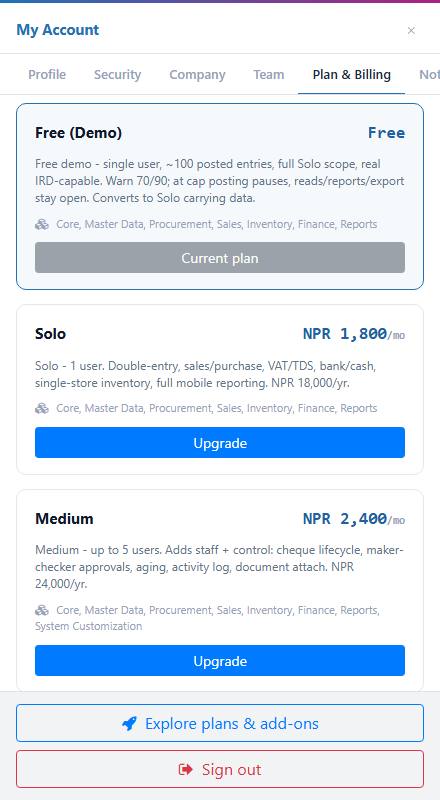
The plan cards with Current plan and Upgrade buttons Plan Price per month Users In short Free (Demo) Free 1 About 100 posted entries, the full Solo scope; moves to Solo with your data Solo NPR 1,800 1 Double entry, sales and purchase, VAT and TDS, bank and cash, one store Medium NPR 2,400 up to 5 Adds cheques, approvals, ageing, activity log, attachments Large NPR 3,600 up to 10 Adds several warehouses, quote to order, landed cost, production basics Max NPR 4,800 up to 30 Adds branches, multi-level approvals, full production
Get more time on the free demo
-
On the free demo you can ask for more time before you decide. Click Request more time.
-
MISAC asks: "Request more time on your free demo? We will extend you to the end of the current Nepali month." Click Yes to extend, or No to leave it.
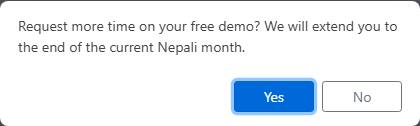
The Request more time confirmation The first two requests are granted straight away. After that, MISAC asks you to choose a plan or export your data.
Choose a bigger plan (upgrade)
-
On the plan you want, click Upgrade. MISAC first asks whether you have a coupon code. Type it, or leave the box empty, and click OK.

The coupon code question -
Choose your term: how long you want to pay for in advance. Longer terms cost less per month: 3 months are 5% off, 6 months 10% off, and a year gets 2 months free. You can also type a number of years (1 to 10) and click Continue. Click the term you want.
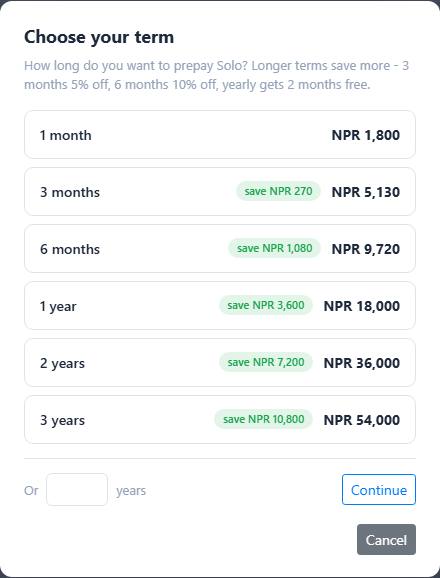
The Choose your term list with prices and savings -
The payment window opens with the amount and the ways you can pay. Pick one, check the summary (term price, VAT and the amount due now) and confirm. See Paying for each way to pay.

The payment window for an upgrade To stop instead, close the payment window with the x at its top right, or click No on the summary. Nothing is charged and your plan stays as it is.
Choose a smaller plan (downgrade)
-
On the smaller plan, click Downgrade. MISAC asks you to confirm: "Your current plan keeps working until the end of this billing cycle, then ... takes effect. No refund for the current cycle."
-
Click Yes. MISAC shows the date the change takes effect, and your plan card says a plan change is scheduled.
Modules and exploring what else you can buy
-
Click Modules (next to My Plan) to see the modules in your plan. You can turn a module off to hide it from your menu, and turn it back on at any time. Modules that are not in your plan are listed under Not in your plan.
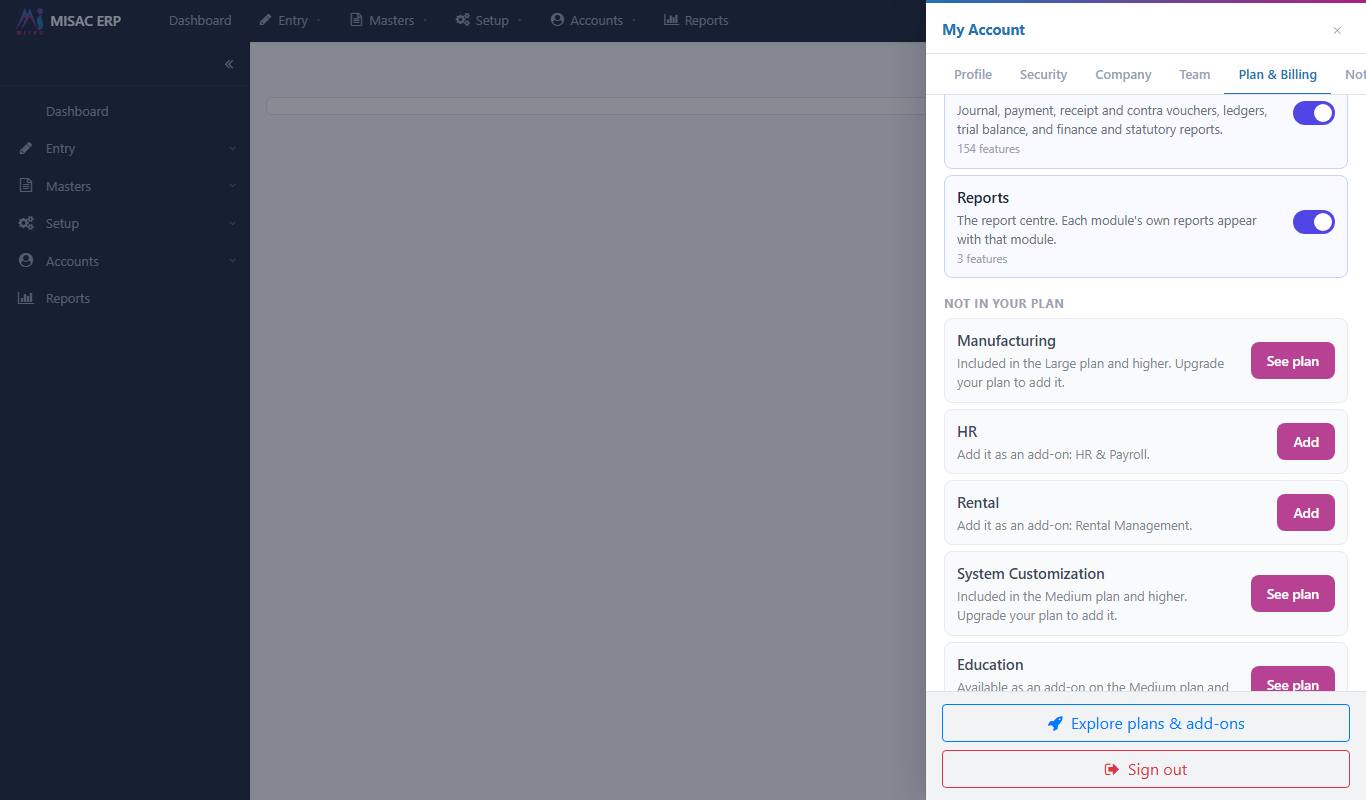
The Modules list with modules in your plan and locked modules -
Click Explore plans & add-ons at the bottom of My Account to see every feature you do not have yet, grouped by the plan or add-on that brings it. Its buttons take you back to the matching plan or add-on on your plan page.
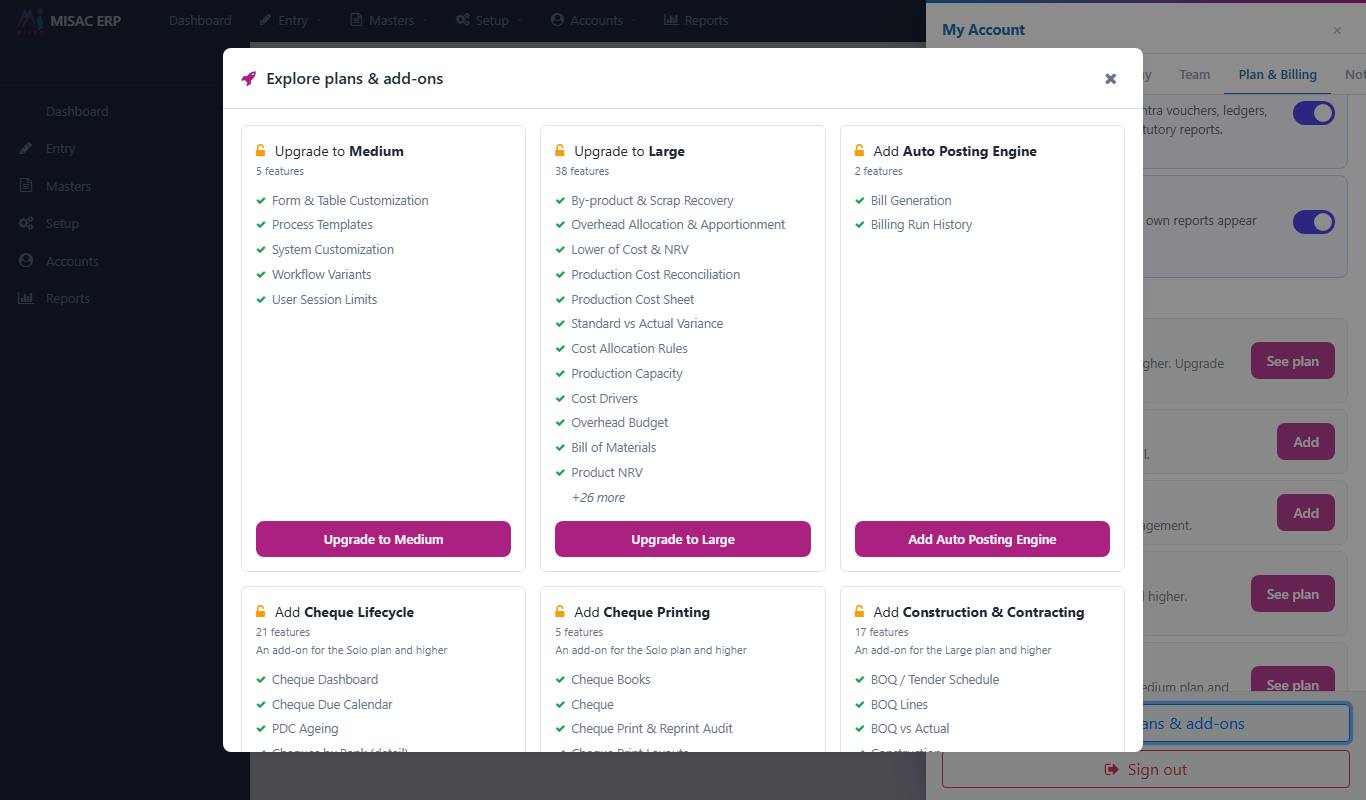
Explore plans and add-ons
What happens next
- An upgrade is paid first, and then the plan widens. The bigger plan starts the moment your payment is confirmed, and a fresh billing term starts with it. You pay the term price minus a credit for the unused part of your current cycle, plus VAT. If that credit covers the whole price, the upgrade applies at once with nothing to pay.
- A downgrade charges nothing and refunds nothing. You keep your current plan until the end of the cycle, then the smaller plan starts. The free plan is the lowest.
- MISAC will not move you to a plan your data does not fit, for example a plan with fewer users than you have active. It tells you what is over the limit so you can fix it first.
- Every payment produces an invoice. See Invoices and receipts.
Common questions
It says "You have an unfinished plan-change payment from before."
You started a payment earlier and did not finish it (for example, you closed the payment page). Click Yes to cancel that one and start the new one.
The upgrade stopped after I typed a coupon.
MISAC checks the coupon first and does not continue with an invalid one. Check the code, or leave the box empty to upgrade without it.
Why is the amount I pay higher than the plan price?
Plan prices exclude VAT, and MISAC adds 13% VAT. For example, Solo for one month is NPR 1,800 plus NPR 234 VAT, so NPR 2,034 is due now. Check the Due now line on the summary before you confirm.
I paid but my plan has not changed yet.
An online payment usually applies within a minute of the payment page sending you back. A bank deposit applies once MISAC approves your voucher, usually within a few hours. See Paying.
The Downgrade button refused my change.
Your workspace has more than the smaller plan allows (for example users or organizations). The message names what is over. Reduce it, then try again.
How do I get a module I do not have?
The Modules tab says, for each one, how to get it: Add it as an add-on (with an Add button that opens the add-on on your plan page), "Available as an add-on on the Medium plan and higher", or "Included in the Large plan and higher". Explore plans & add-ons offers only what your plan can buy.