
Once your shop is online, buyers order on your website and the orders arrive in MISAC by themselves. This guide shows the buyer's side first (product page, cart, checkout, cash on delivery), so you know exactly what your customers see. Then it shows where each order appears in MISAC and how to process it: confirm, deliver, invoice and record the payment. It ends with enquiries, the messages visitors send from your website's forms. For every detail, see the complete guide, Managing your MISAC Online Store.
Before you start
- Your shop must be set up and switched on, with a web address. See Setting up your Online Store.
- To process orders you need access to Sales Order, Sales Invoice and Receipt.
- Your plan limits the number of orders. On the Free plan the limit is 2 a day and 60 a month.
Step by step
What the buyer does
-
The buyer opens your shop, for example guide-demo-store.misac.store, and browses your products. Each shows its name, price and unit, and an Add to cart button.
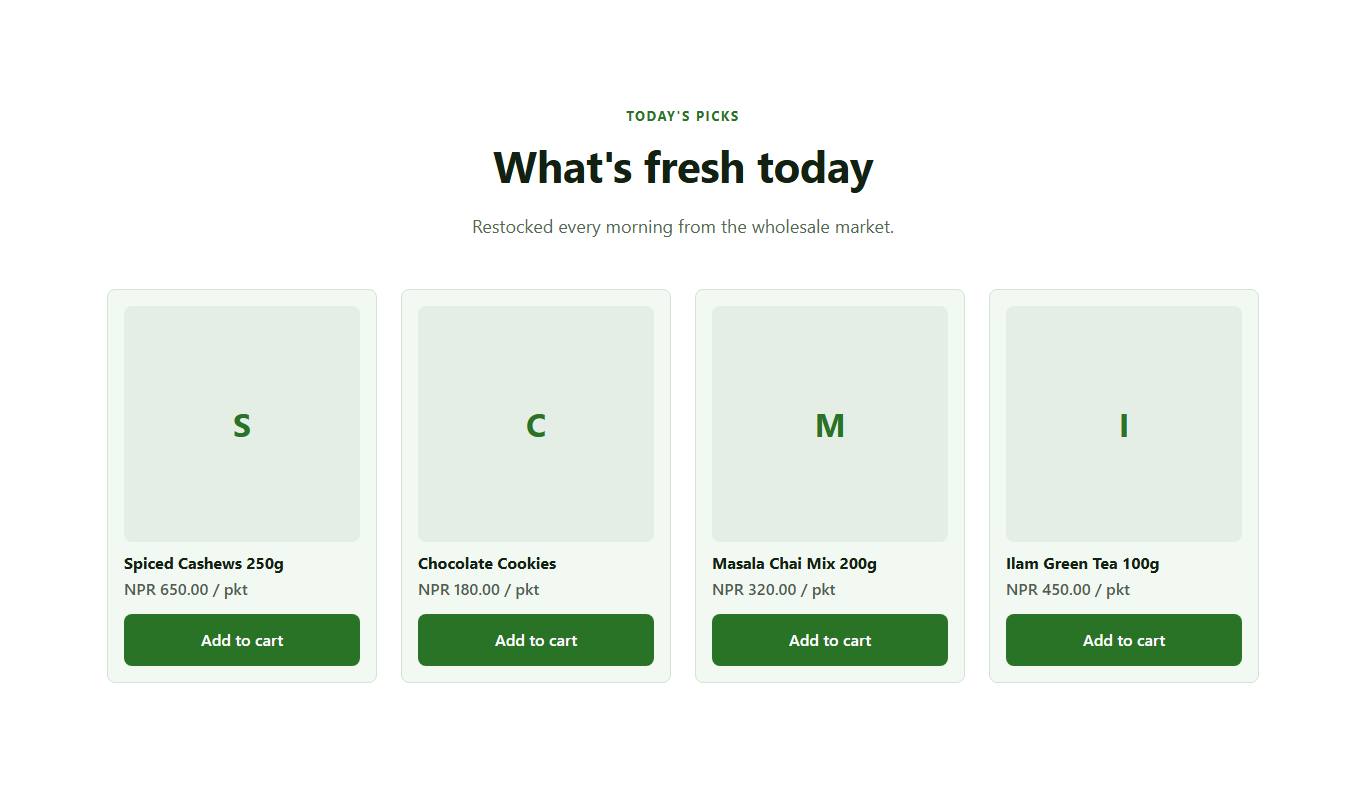
Products on the shop's home page with prices and Add to cart buttons -
Clicking a product opens its page. The buyer sets the Quantity and clicks Add to cart.
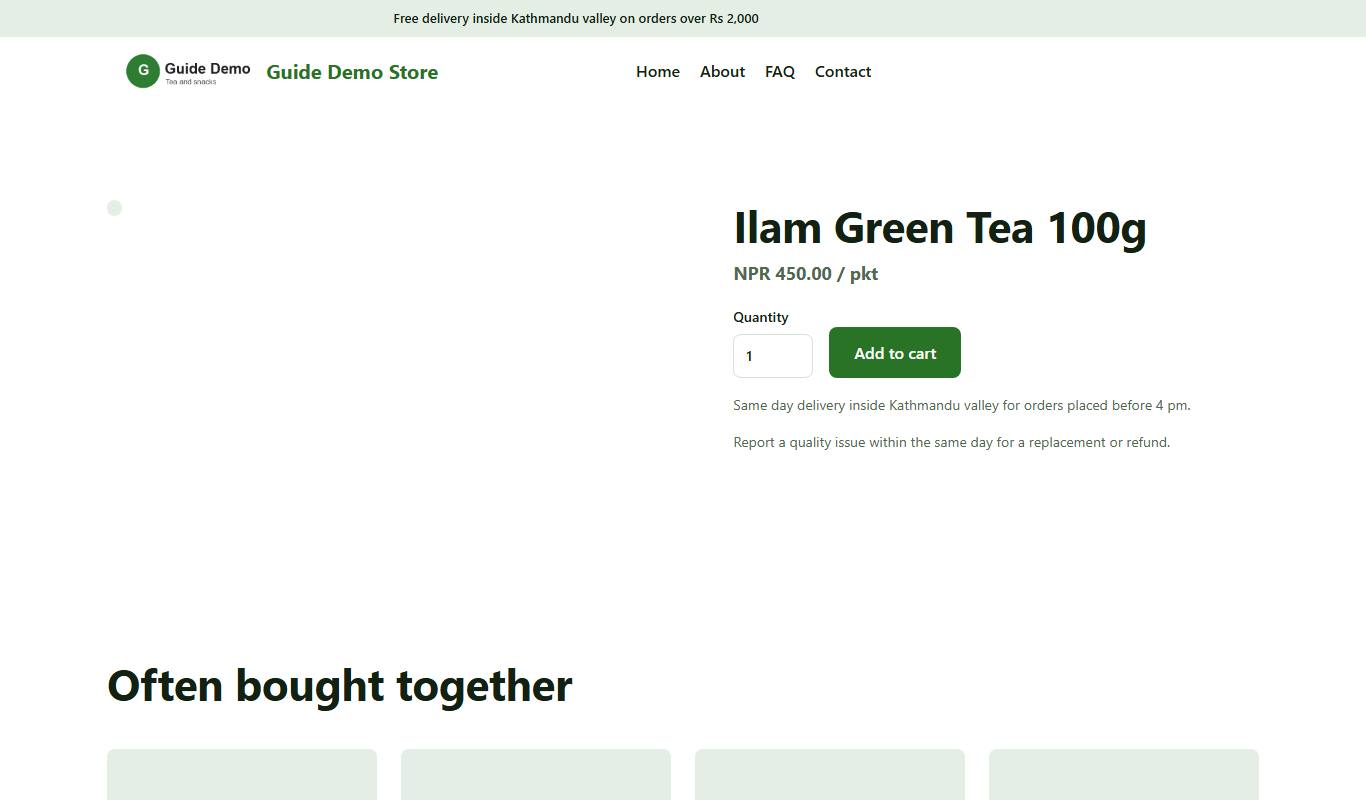
A product page with Quantity and Add to cart -
The cart opens. A Cart link with the number of items shows at the top of every page of a shop that has products on sale (it reads 0 until something is added). The buyer can change a quantity and click Update cart, click Remove, or click Go to checkout.

The cart with two packets of Ilam Green Tea and Go to checkout -
At checkout the buyer types their Full name, Phone, Email (optional), delivery Address and an Order note (optional). The order summary is on the right.
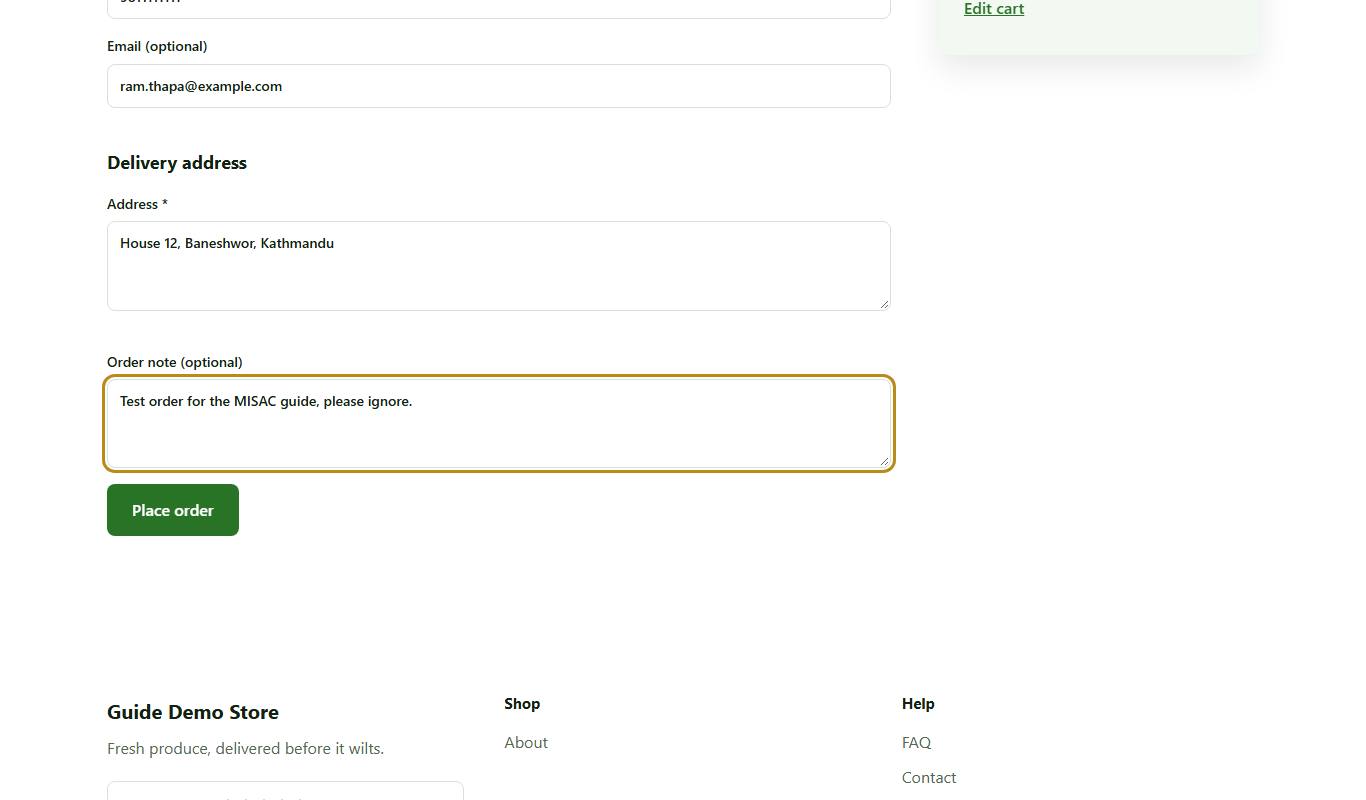
The checkout form filled in by a buyer If you offer more than one way to pay, the buyer chooses one here. When cash on delivery is your only way to pay, as on this shop, no choice is shown and the order is cash on delivery.
-
The buyer clicks Place order. If they typed an email, MISAC emails them a 6-digit code and asks "Have you ordered from us before?". Typing the code and clicking Use the code and place the order links the order to the right customer record. Continue as a guest places the order without the code.
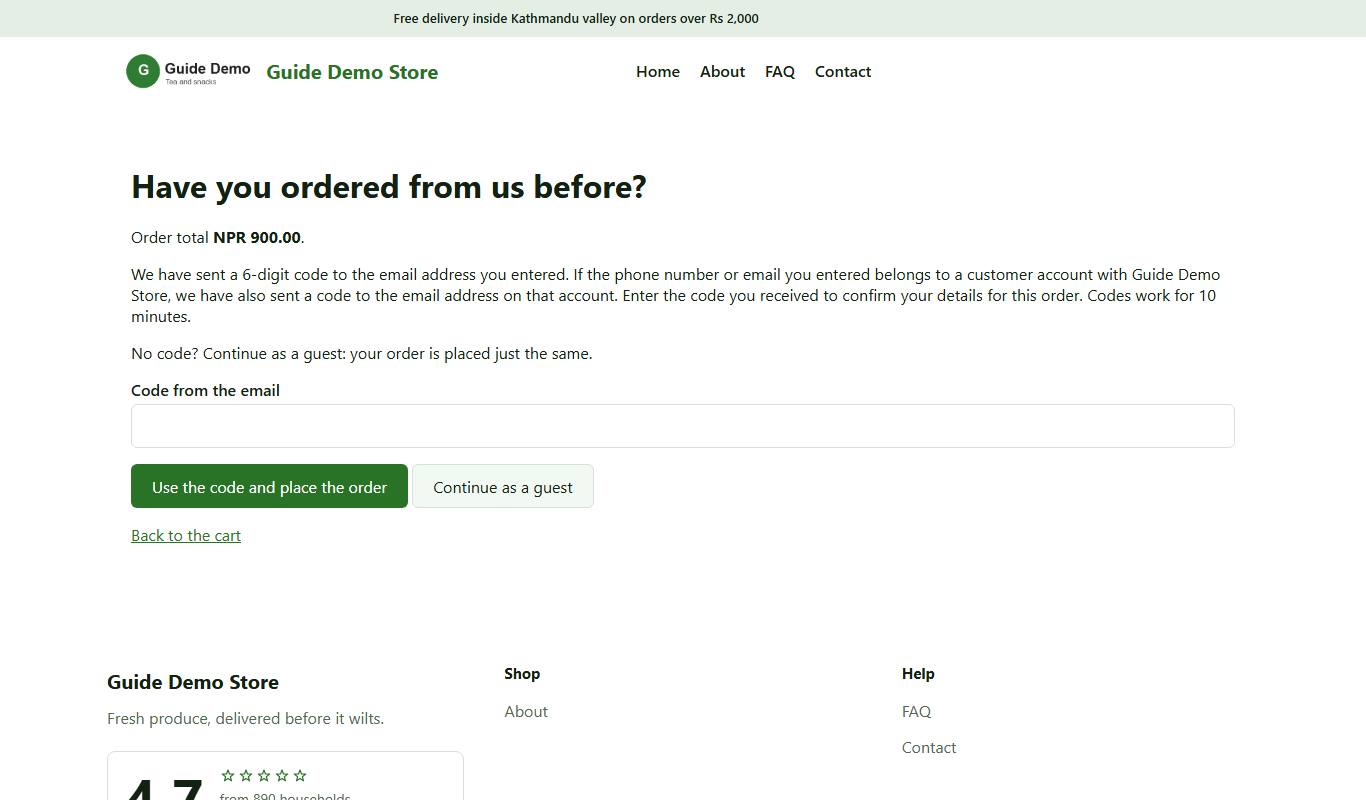
The page asking for the 6-digit code, with Continue as a guest -
The buyer sees "Thank you, your order is placed", the order number, the order total and, for cash on delivery, "Pay in cash when your order is delivered. The shop will call you to confirm." For bank transfer, this page shows your bank details instead. The order number is the one you see in MISAC: a new shop order is a draft with no voucher number yet, so it is the order's ID, for example #98656 (the title reads Sales Order #98656). The buyer quotes it when they contact you.
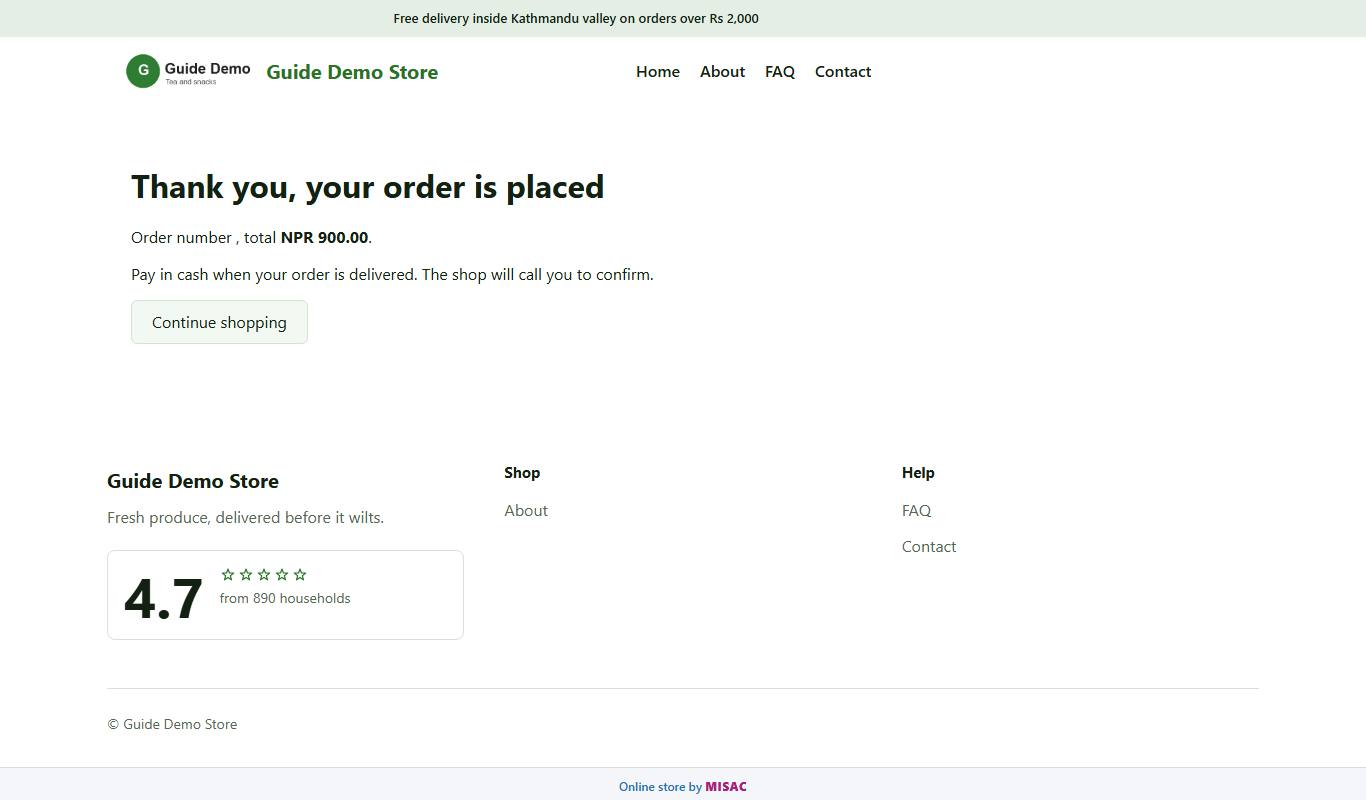
The order confirmation page
Where the order appears in MISAC
-
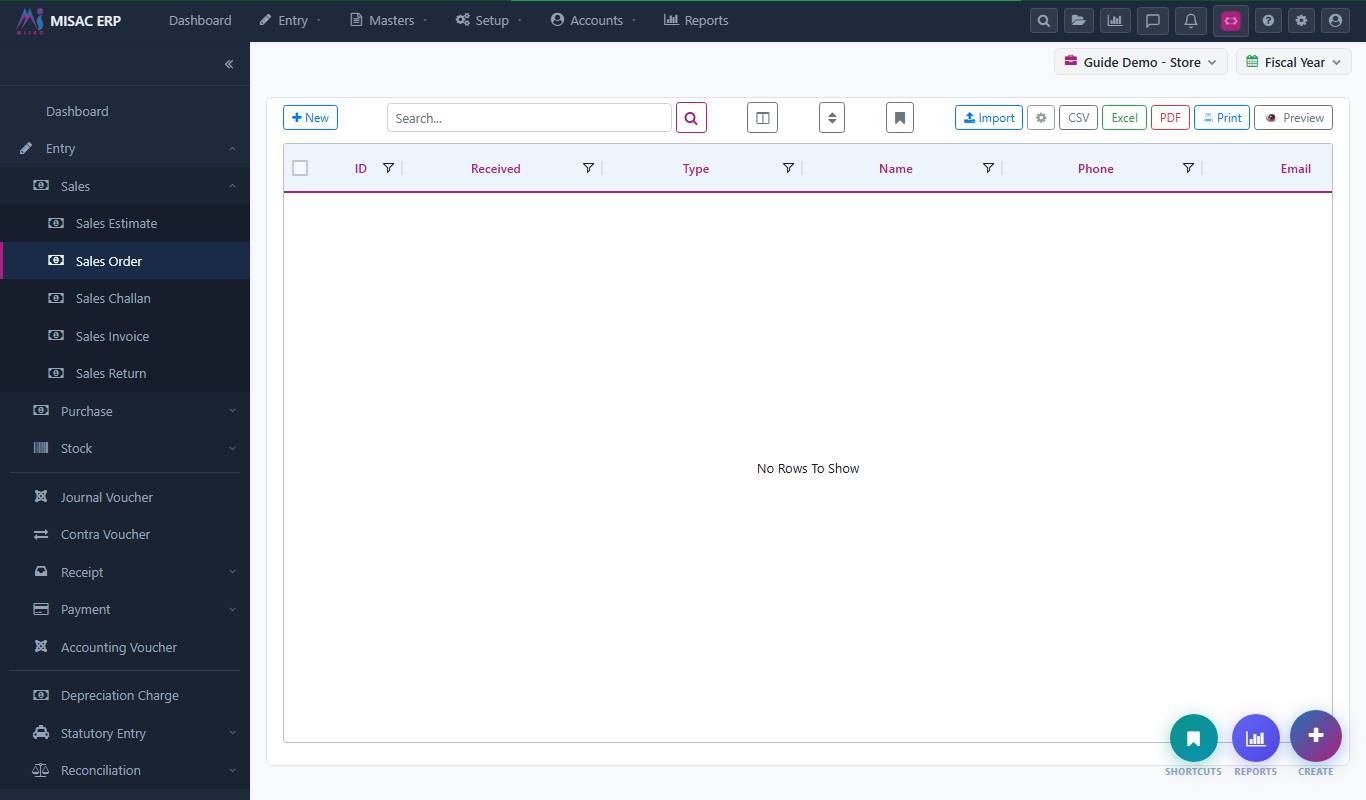
In MISAC, open Entry > Sales > Sales Order. The shop order is listed with today's date.

The Sales Order list with the new shop order -
Click the eye icon to open it. A shop order is a Draft sales order:
- Vendor Name (the customer) is Online walk-in for guests and for buyers who skipped the code. A buyer who entered the code from their customer record is booked to that customer, and a new buyer who confirmed their email gets a new customer record.
- Remarks/Narration records everything the buyer typed and how they chose to pay, for example "Online store order (guide-demo-store.misac.store). Payment: Cash on delivery (pay later). Buyer: Ram Thapa, 9811111111, [email protected]. Deliver to: House 12, Baneshwor, Kathmandu."
- Ref.Doc starts with SF-, which marks it as a shop order.
- Items lists the products, quantities and the prices from your rate set.
- Cost Center is the one you chose for shop orders in Website Settings.

A shop order opened in MISAC, in Draft, with the buyer's details in the narration
Process a cash on delivery order
-
Call the buyer on the phone number in the narration to confirm the order and the delivery time.
-
If the buyer is a regular customer but the order is under Online walk-in, click Edit and change the customer, then save. You can also correct quantities here while the order is a draft.
-
Click Submit at the bottom of the order to move it on through your approval steps, the same as a sales order your staff enter. Cancel cancels the order.
-
Deliver the goods and raise the Sales Invoice from the order as you normally do. The shop checked your stock when the buyer ordered, but it does not reserve it: stock leaves your books when you post the invoice.
-
When you collect the cash, record it in Entry > Receipt against the customer.
For a bank transfer order, wait until the money shows in your bank and record the receipt. Then approve, deliver and invoice. Online payments (Basic plan and up, with the Online Payments add-on) record the receipt for you. See the complete guide for those.
Keep an eye on your order allowance
-
Open My Account > Plan & Billing > My Plan. The Online Store row counts your shop orders, for example "Online orders today: 1 of 2" and "Online orders this month: 1 of 60", and "Products online: 4 of 4 shown".
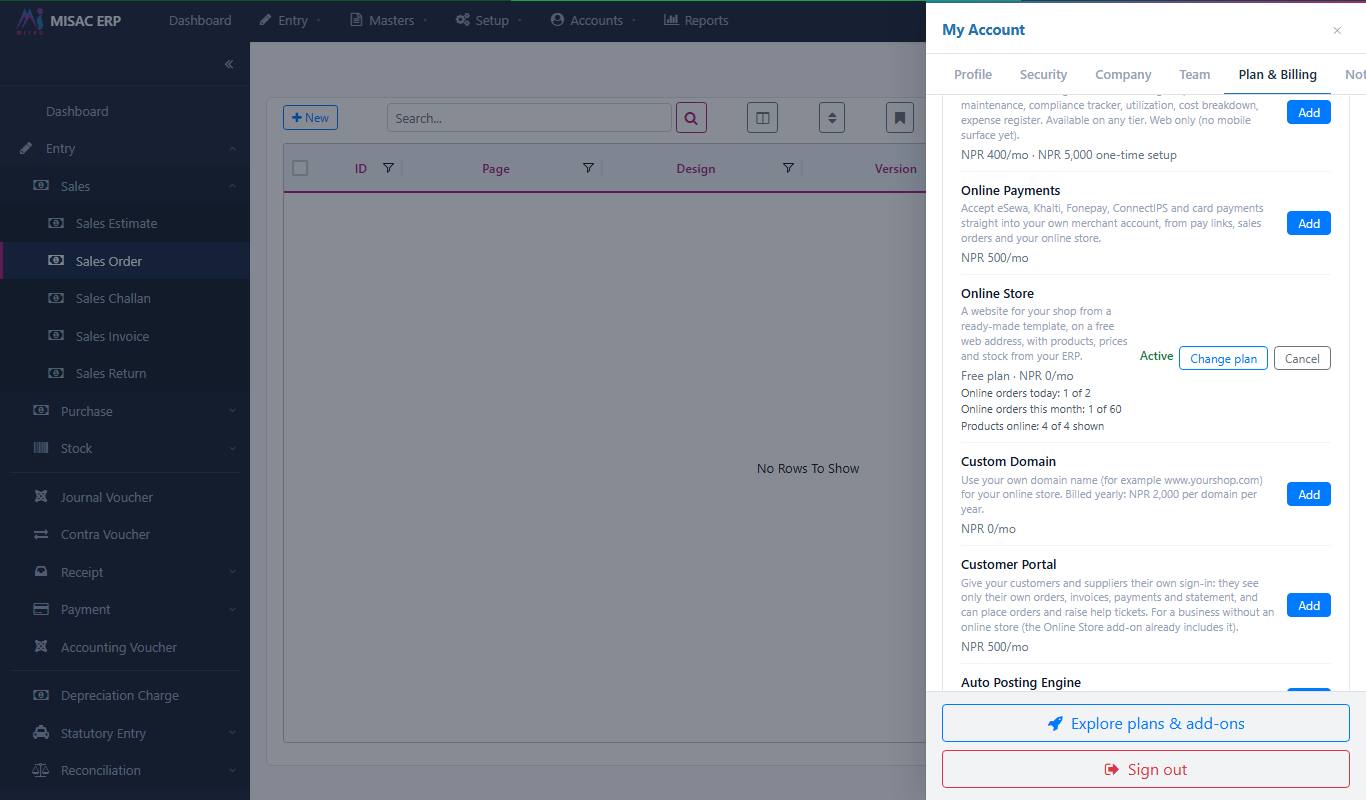
The Online Store row counting one order today Only orders placed on your shop count. At 80% of a limit, the owner gets one notice. At the limit, the shop stops taking orders until the next day or the next Nepali month, or until you move to a bigger plan.
Enquiries
Many designs include forms for visitors: contact, call back, appointment booking, RSVP or newsletter sign-up. Messages from these forms arrive in MISAC, not as orders but as enquiries.
-
Open Setup > Online Store > Enquiries. Each message is listed with when it was Received, its Type, and the visitor's Name, Phone and Email, with the status New.
The Enquiries screen -
Answer the visitor, then open the enquiry, set Status to Handled and keep a Note of what was agreed. You can also add an enquiry yourself, for example one taken by phone, with + New.
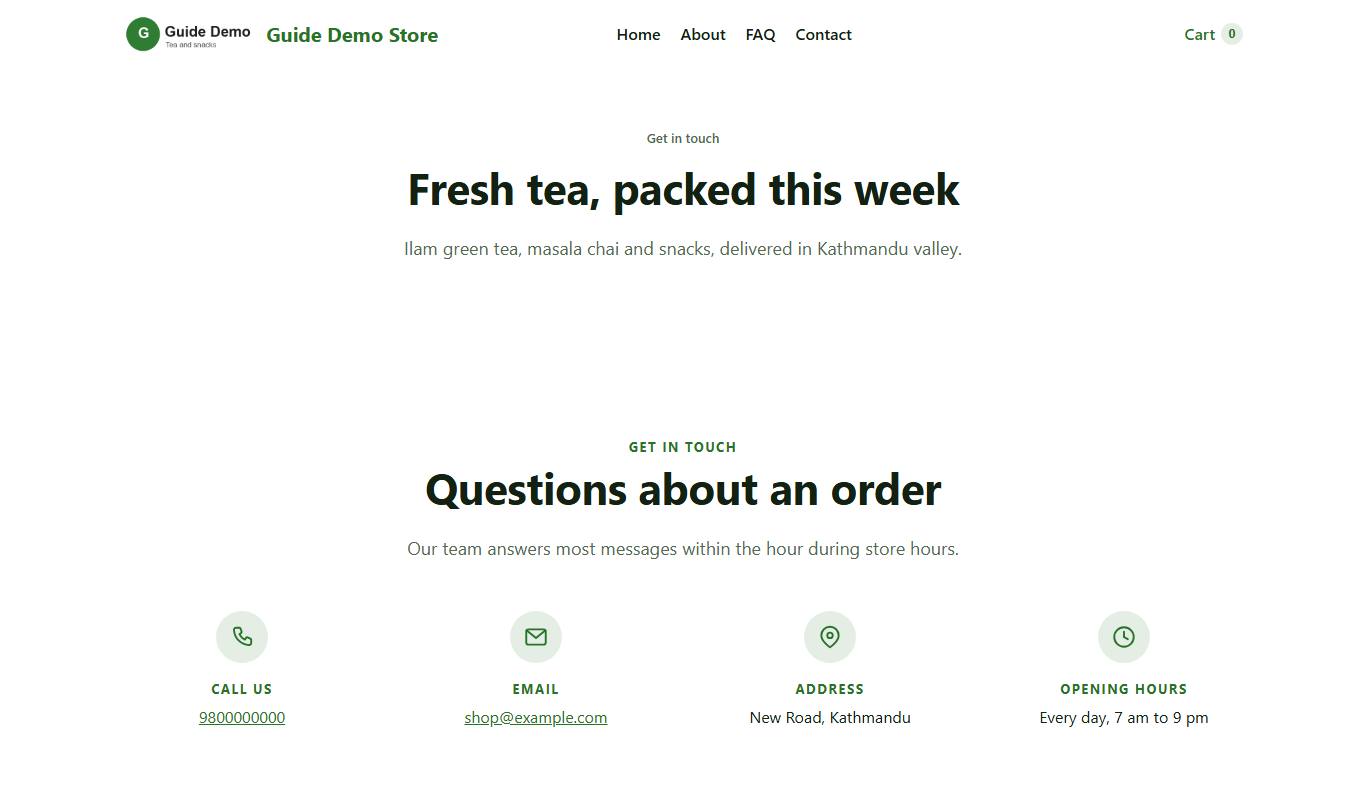
Every Contact page has a message form. Some designs, like the free Fresh Market design used here, only show your phone, email and address on their Contact page; MISAC then adds a Send us a message form below them, and those messages arrive in Enquiries too.
What happens next
- Every new shop order waits as a draft in Sales Order until you deal with it. Check the list at least once a day so no buyer is left waiting.
- No alert is sent for enquiries either. Check Enquiries regularly for ones marked New.
- Enquiries cannot be deleted. Mark them Handled instead.
- A buyer who entered the code is linked to their customer record, so their next orders go straight to the right customer.
Common questions
Why are so many orders under "Online walk-in"?
Buyers who skip the emailed code, or whose details could not be confirmed, are booked to this one customer so nobody can put an order on someone else's account. The narration names the buyer. Edit the draft order to move it to the right customer.
The buyer says the shop cannot take more orders.
Your plan's order limit has been reached. On the Free plan it lifts the next day (2 a day) or on the 1st of the next Nepali month (60 a month). Moving to a bigger plan lifts it at once.
Which number does the buyer quote?
The order number on their confirmation page. While the order is a draft it is the order's ID, for example #98656: open Sales Order and find it in the ID column, or in the title of the order (Sales Order #98656). The narration also names the buyer.
The buyer did not get the 6-digit code.
They can click Continue as a guest. The order is placed just the same and booked to Online walk-in. You can move it to their customer record afterwards.
Does the shop add VAT at checkout?
No. The shop charges the rate from your rate set exactly as it is. Decide whether your website rates include VAT, and invoice accordingly.
A buyer ordered something that is out of stock.
With Take orders for out-of-stock items unticked the shop refuses such an order, so either the setting is ticked or two buyers ordered the last one at the same moment (a shop order does not reserve stock). Call the buyer and agree a replacement or a date, or cancel the draft order. To stop buyers ordering items you have none of, untick Take orders for out-of-stock items in Website Settings.